Part 19 of 24

Contact

Ring, email, or send a message.

  1. Step 1. Open Contact from the footer. To talk now, click Call 01895 271400.
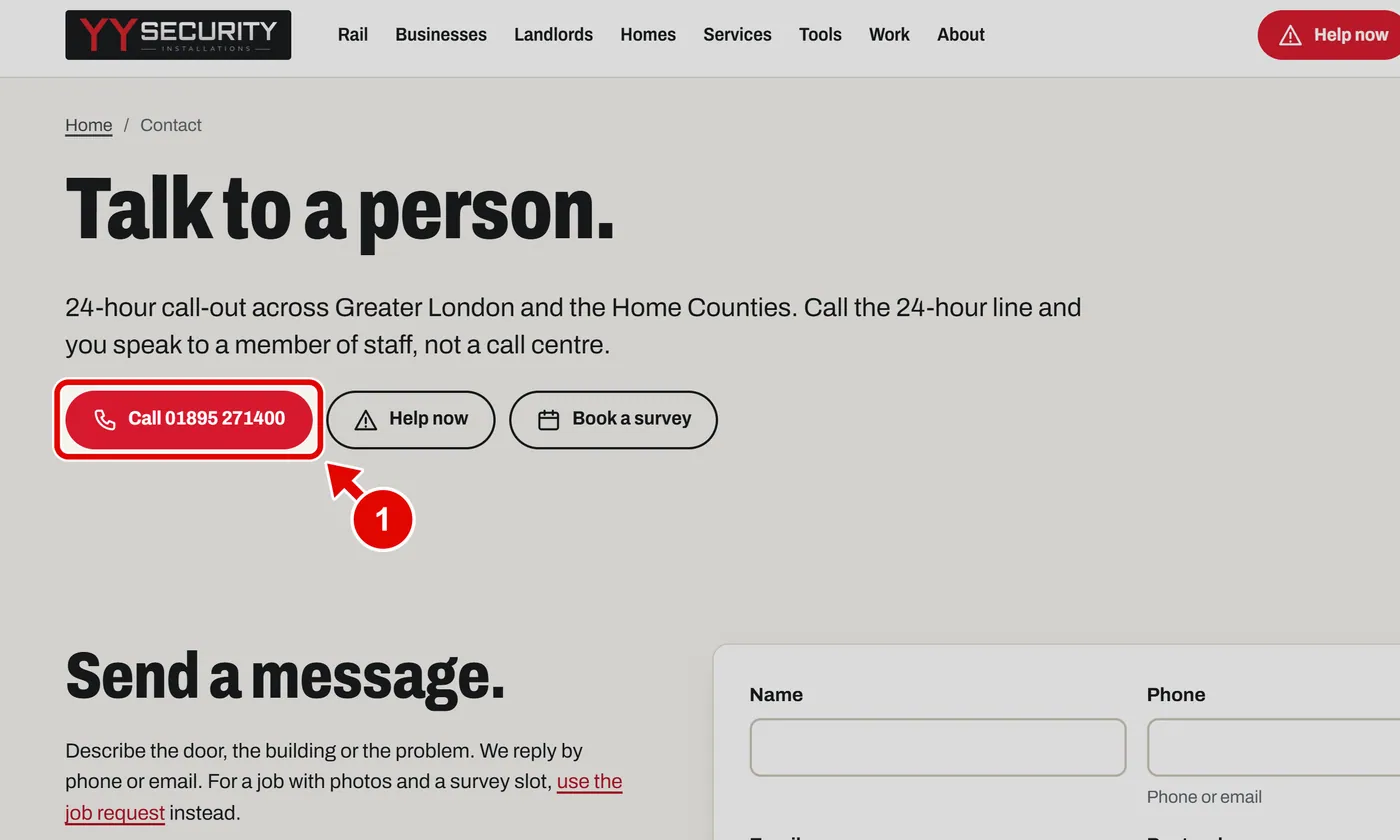
    Screen grab from Contact, on a computer. A red box marks the part to use.
  2. Step 2. To send an email, click an email address. Your email app opens.
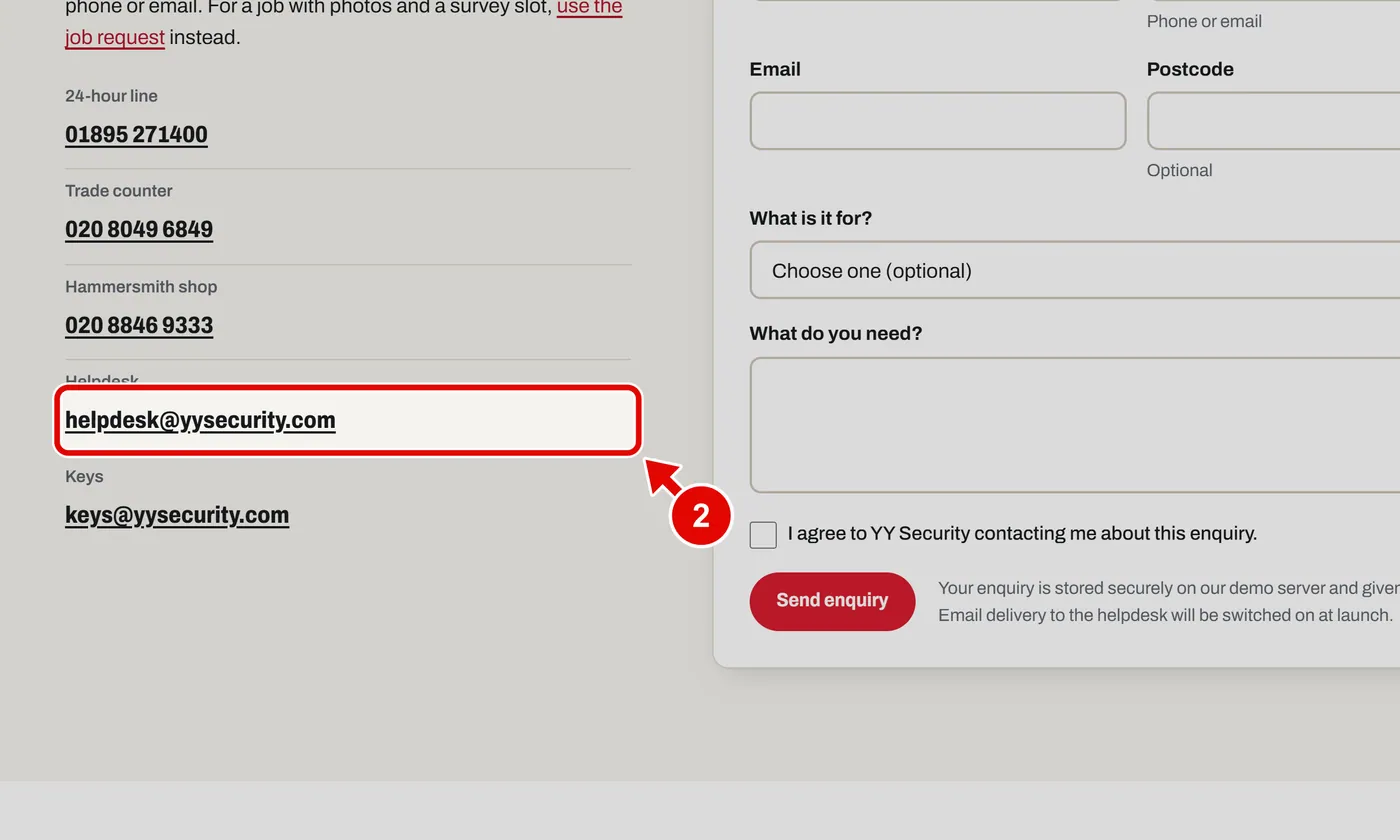
    Screen grab from Contact, on a computer. A red box marks the part to use.
  3. Step 3. Or send a message here. Type your name.
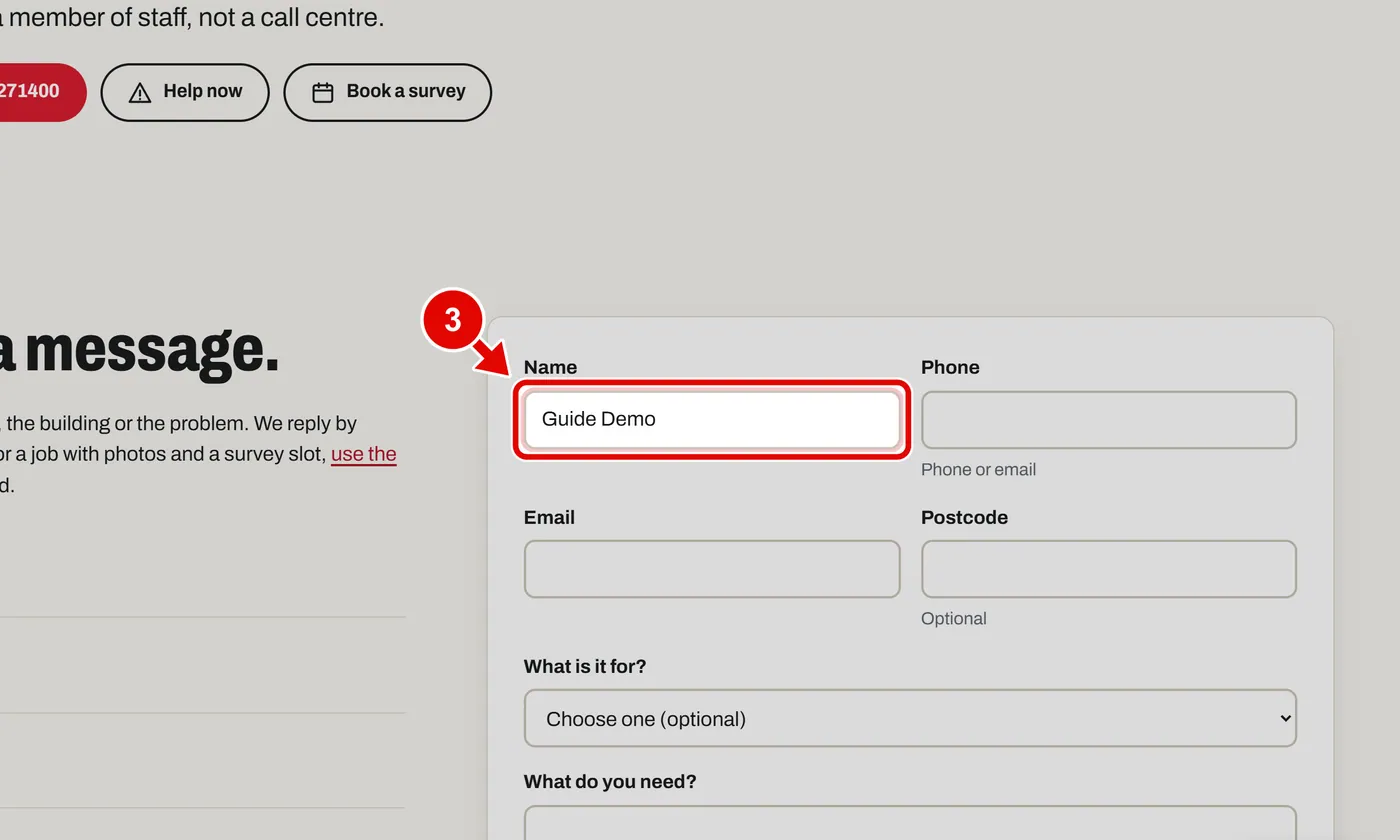
    Screen grab from Contact, on a computer. A red box marks the part to use.
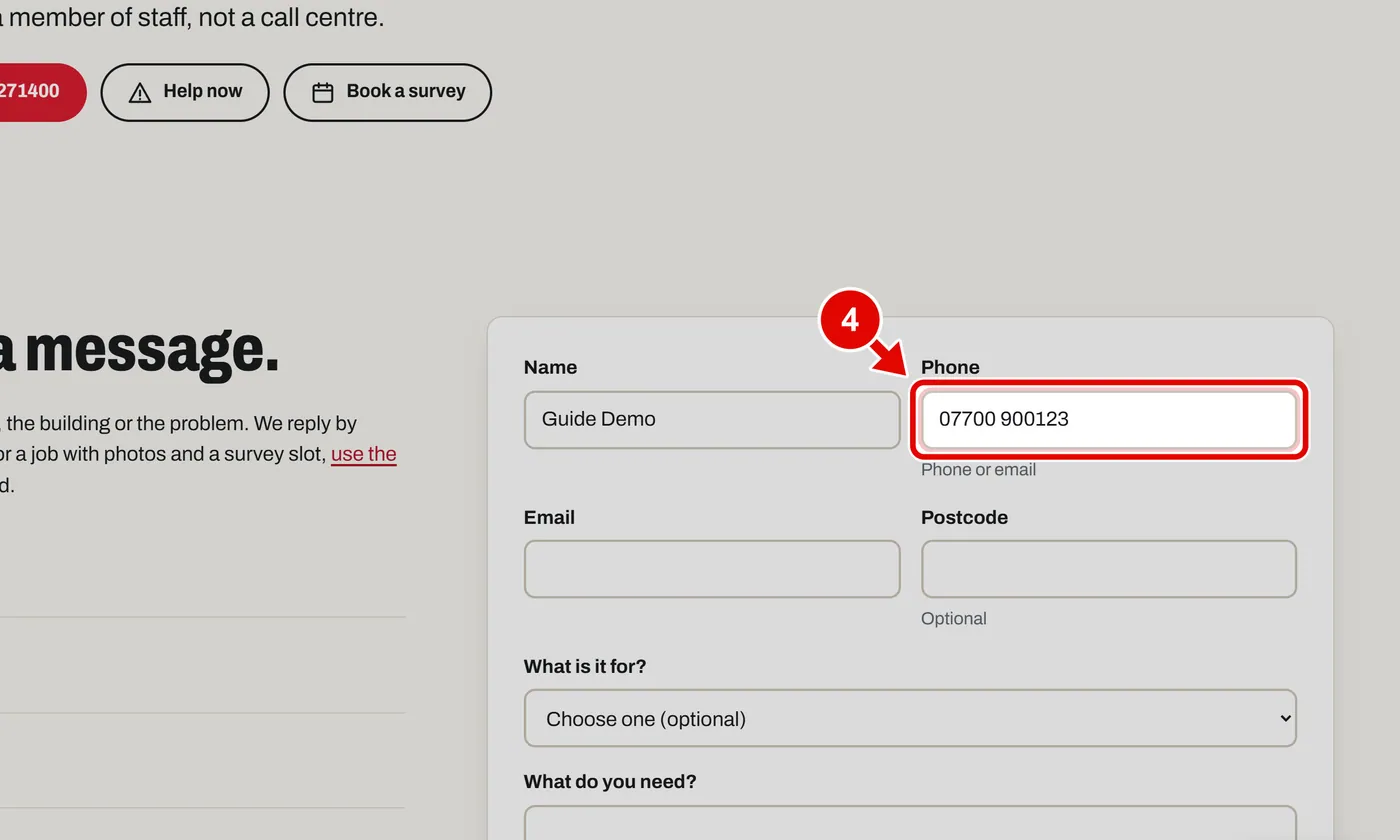
  4. Step 4. Type your phone number.

    Screen grab from Contact, on a computer. A red box marks the part to use.
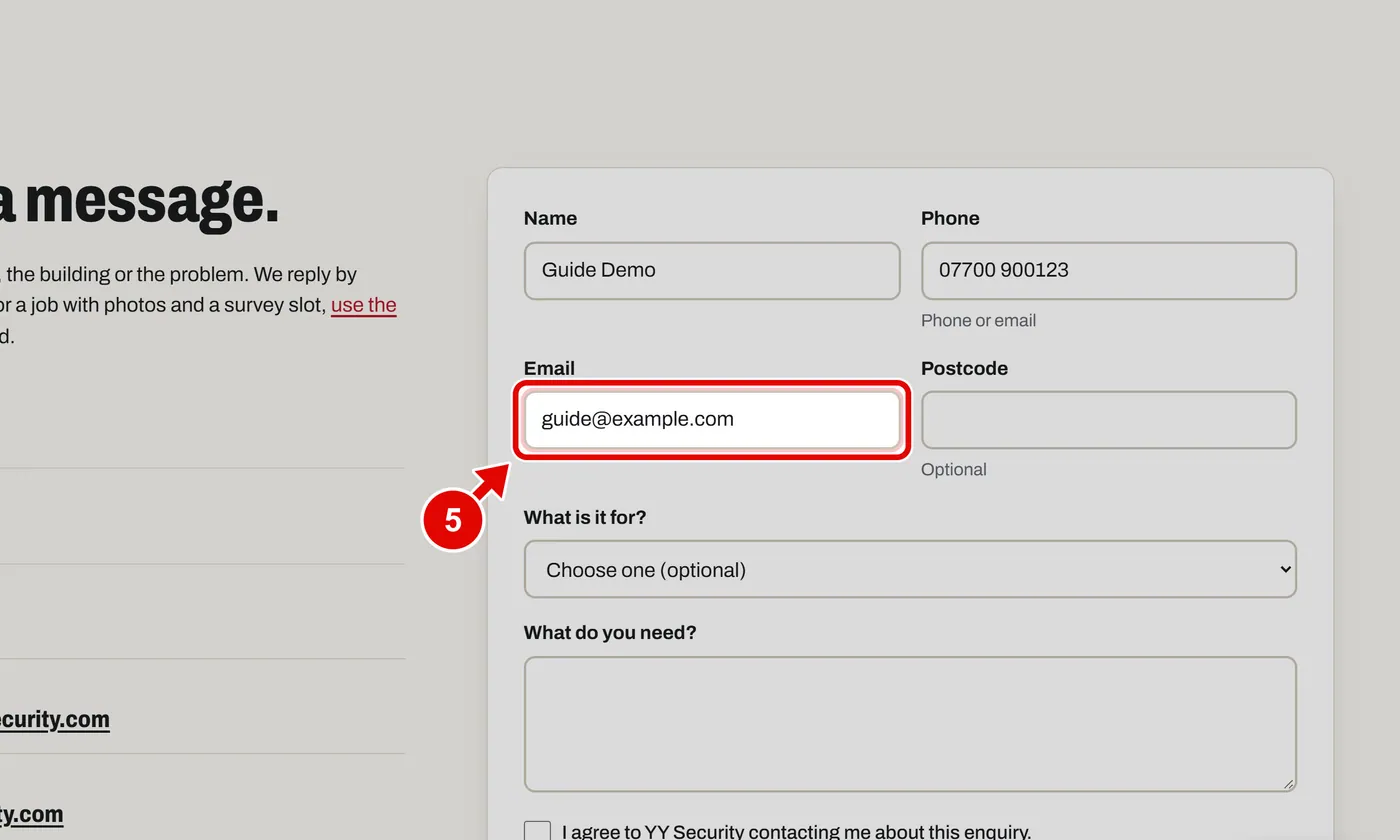
  5. Step 5. Type your email.

    Screen grab from Contact, on a computer. A red box marks the part to use.
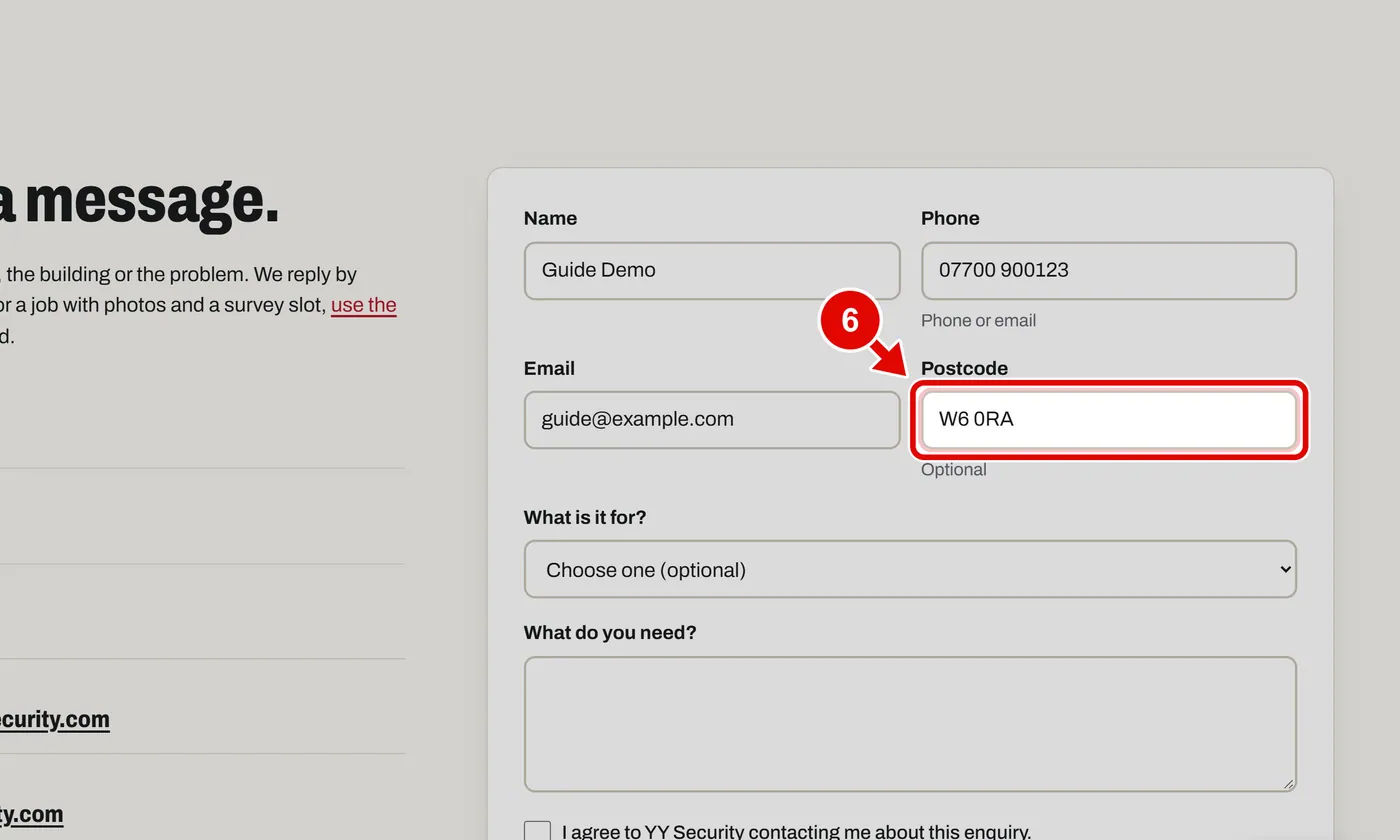
  6. Step 6. Type your postcode.

    Screen grab from Contact, on a computer. A red box marks the part to use.
  7. Step 7. Pick what it is about from the list.
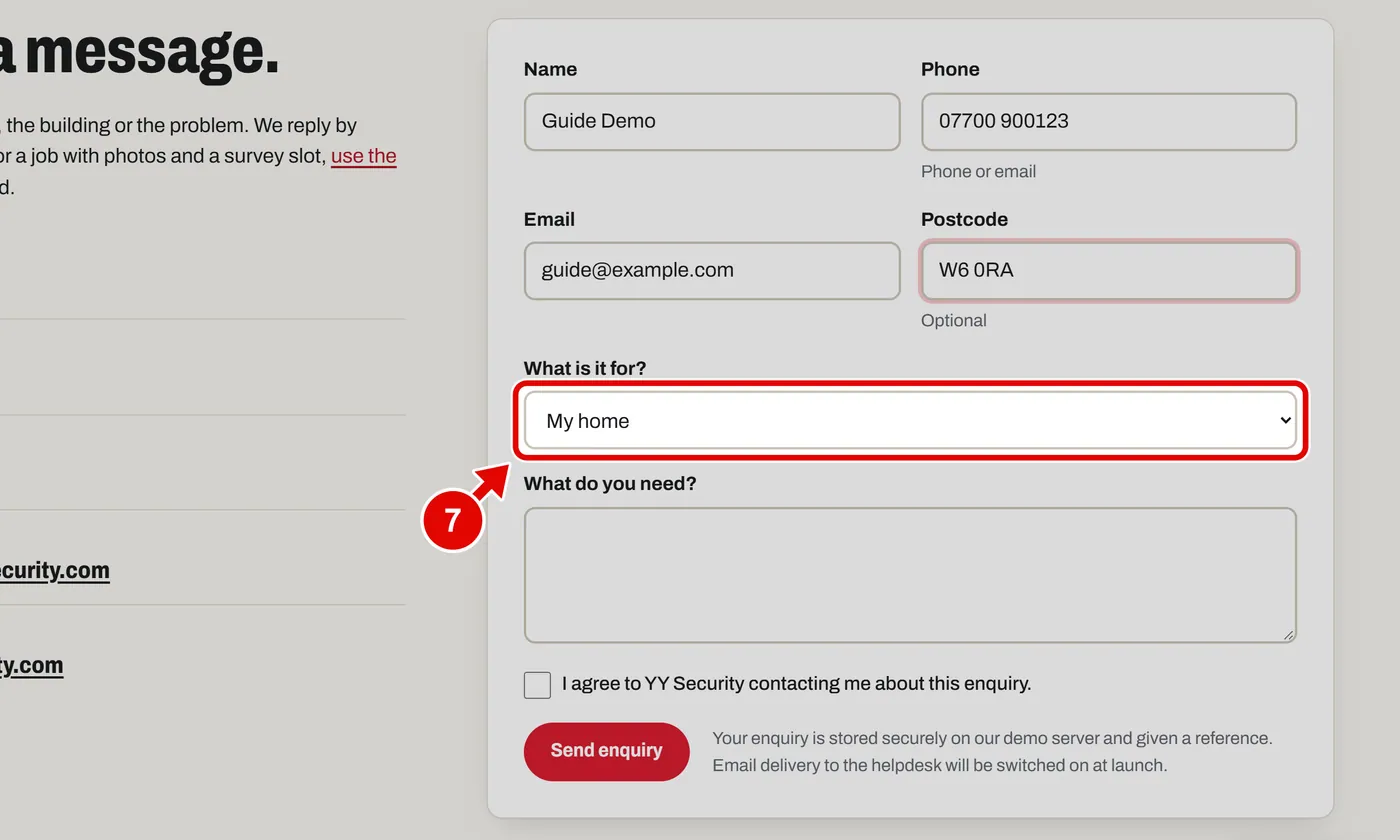
    Screen grab from Contact, on a computer. A red box marks the part to use.
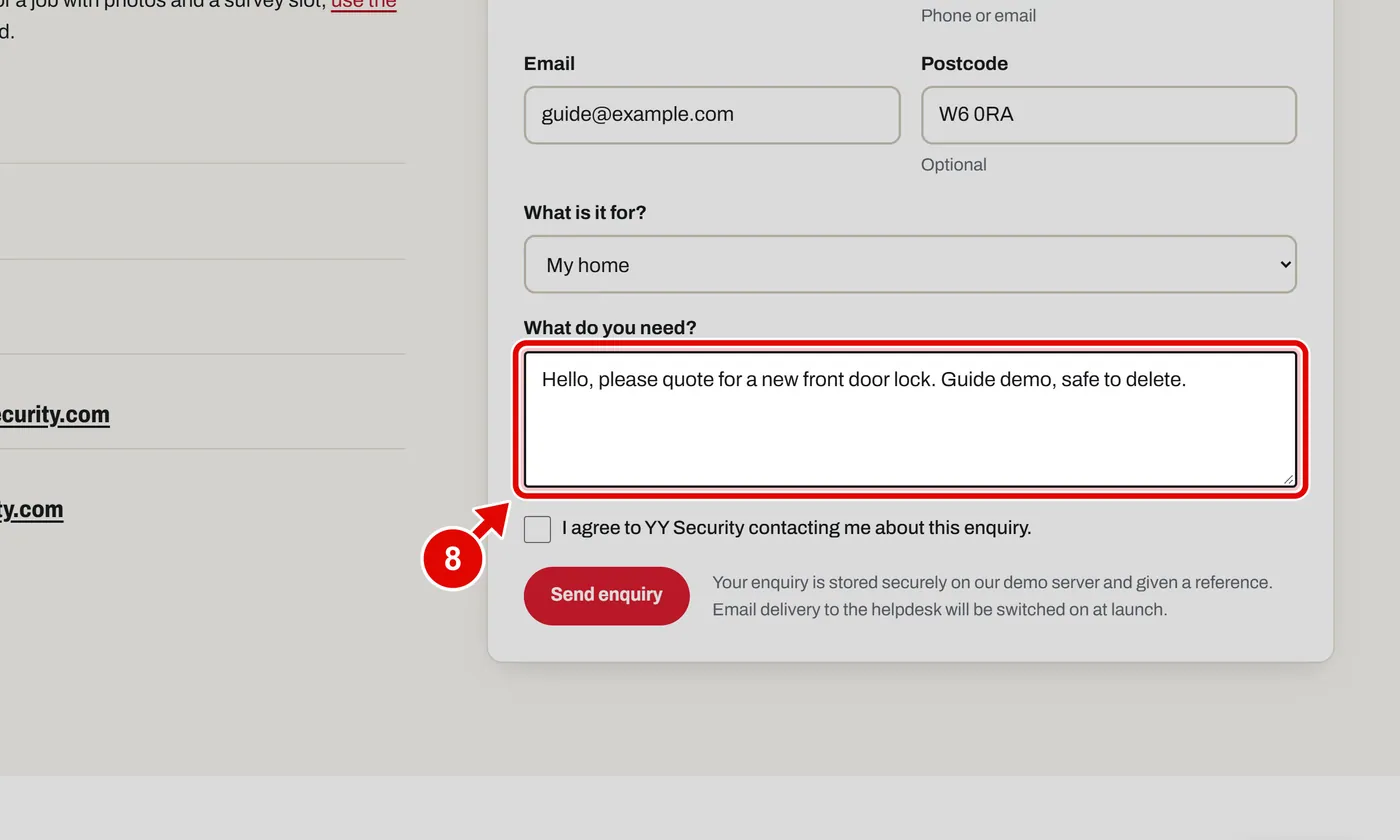
  8. Step 8. Type your message.

    Screen grab from Contact, on a computer. A red box marks the part to use.
  9. Step 9. Click the tick box. It says YY may contact you.
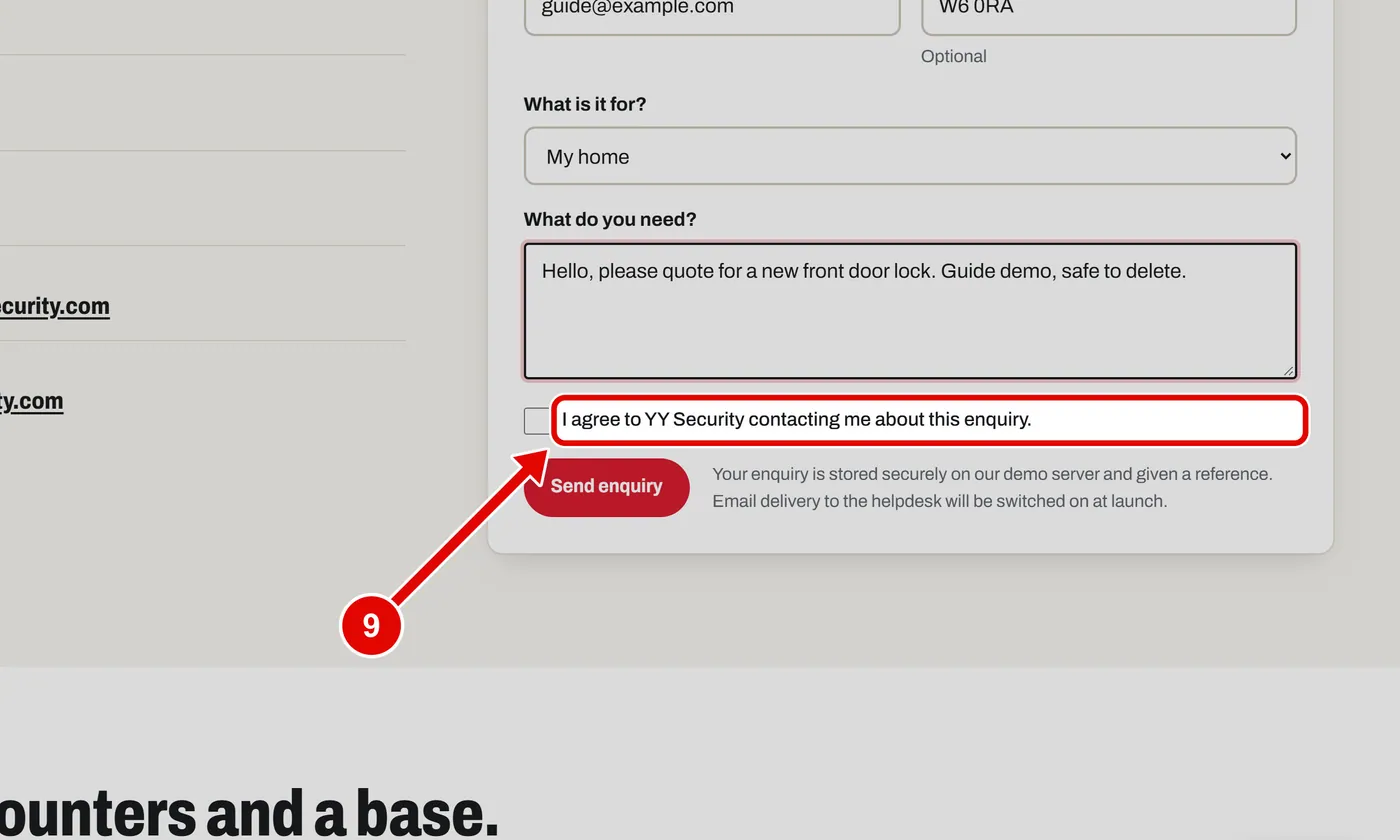
    Screen grab from Contact, on a computer. A red box marks the part to use.
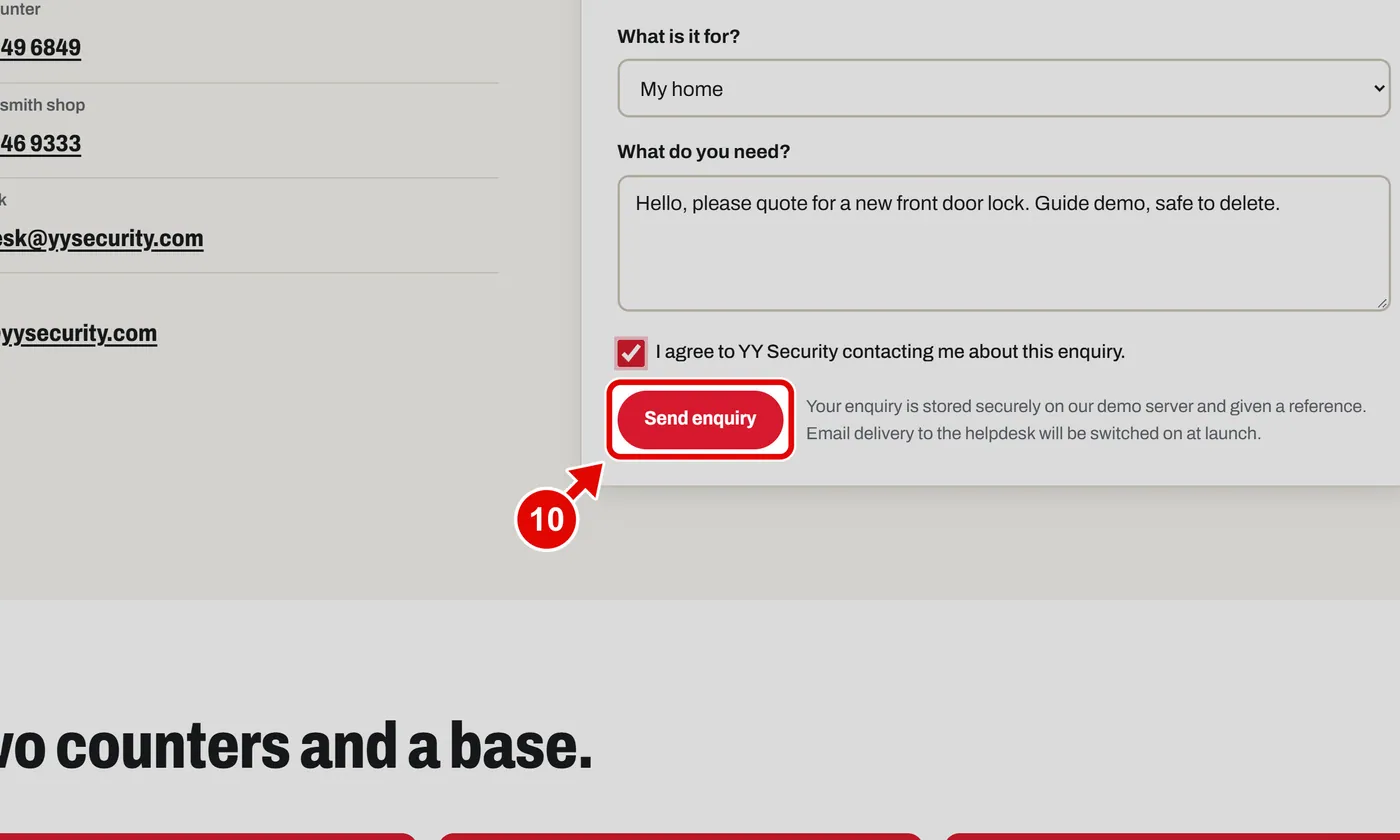
  10. Step 10. Click Send enquiry.

    Screen grab from Contact, on a computer. A red box marks the part to use.
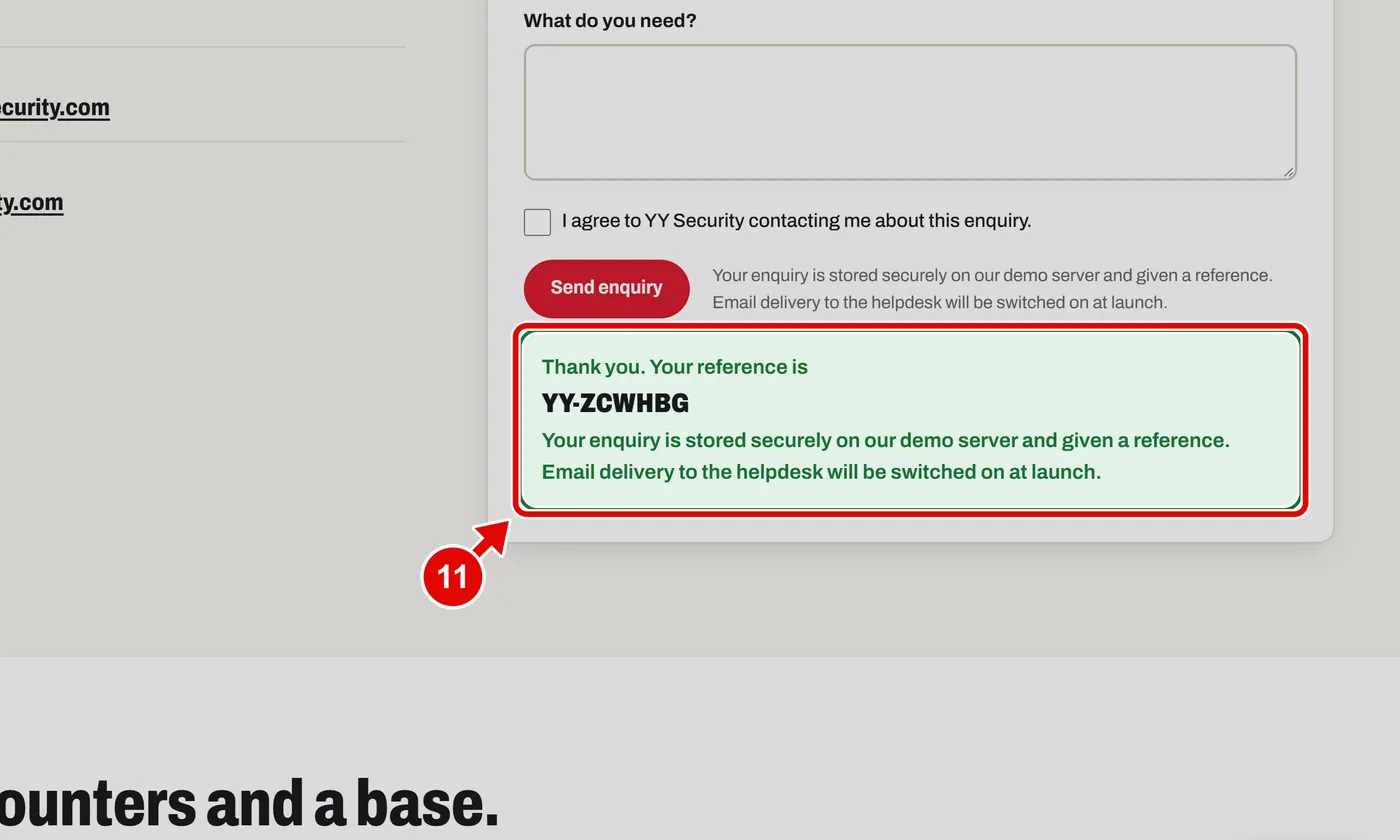
  11. Step 11. Done. You get a reference.

    Screen grab from Contact, on a computer. A red box marks the part to use.
  12. Step 12. Below are the shop, the trade counter and the base, with phone numbers and opening times.
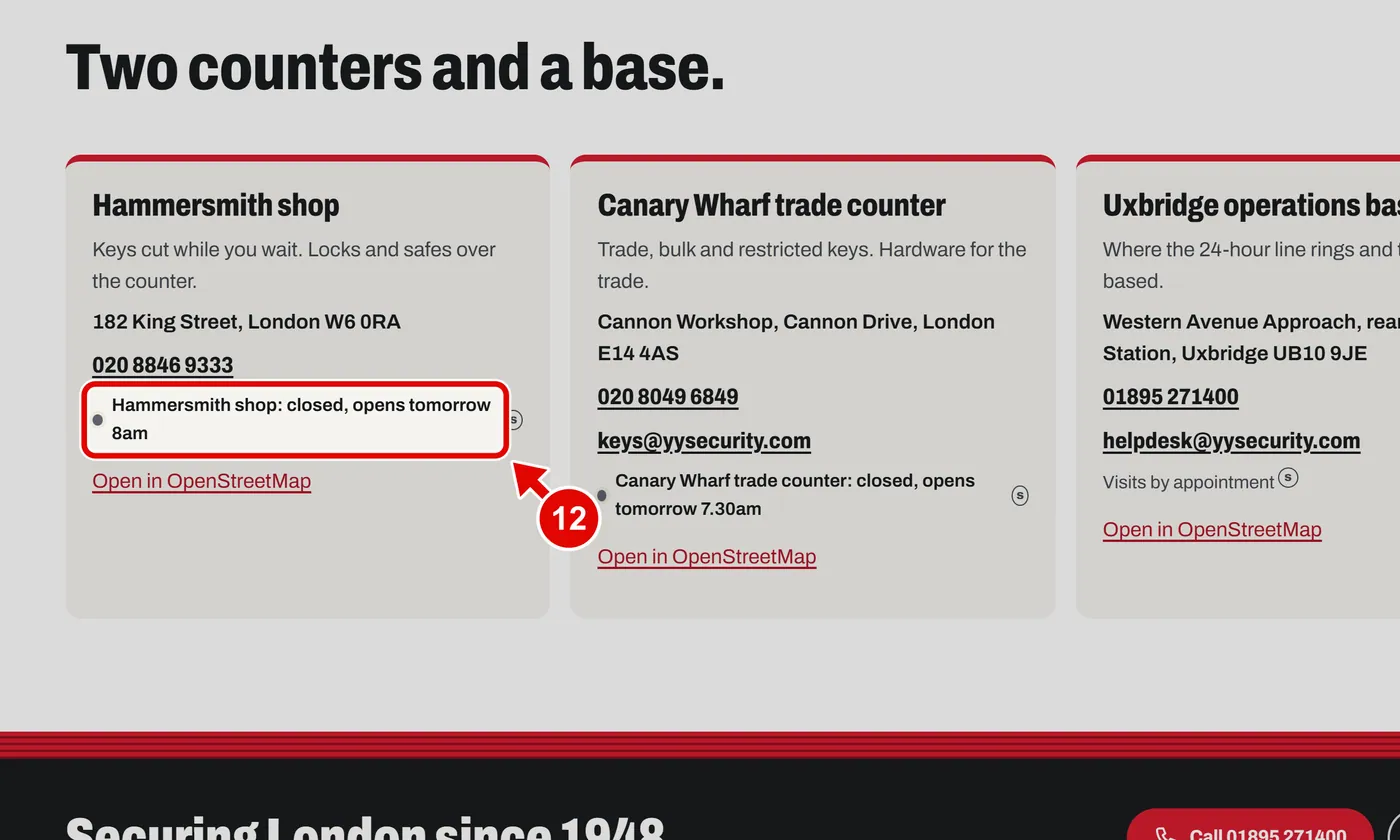
    Screen grab from Contact, on a computer. A red box marks the part to use.
  13. Step 13. Click Open in OpenStreetMap for a map.
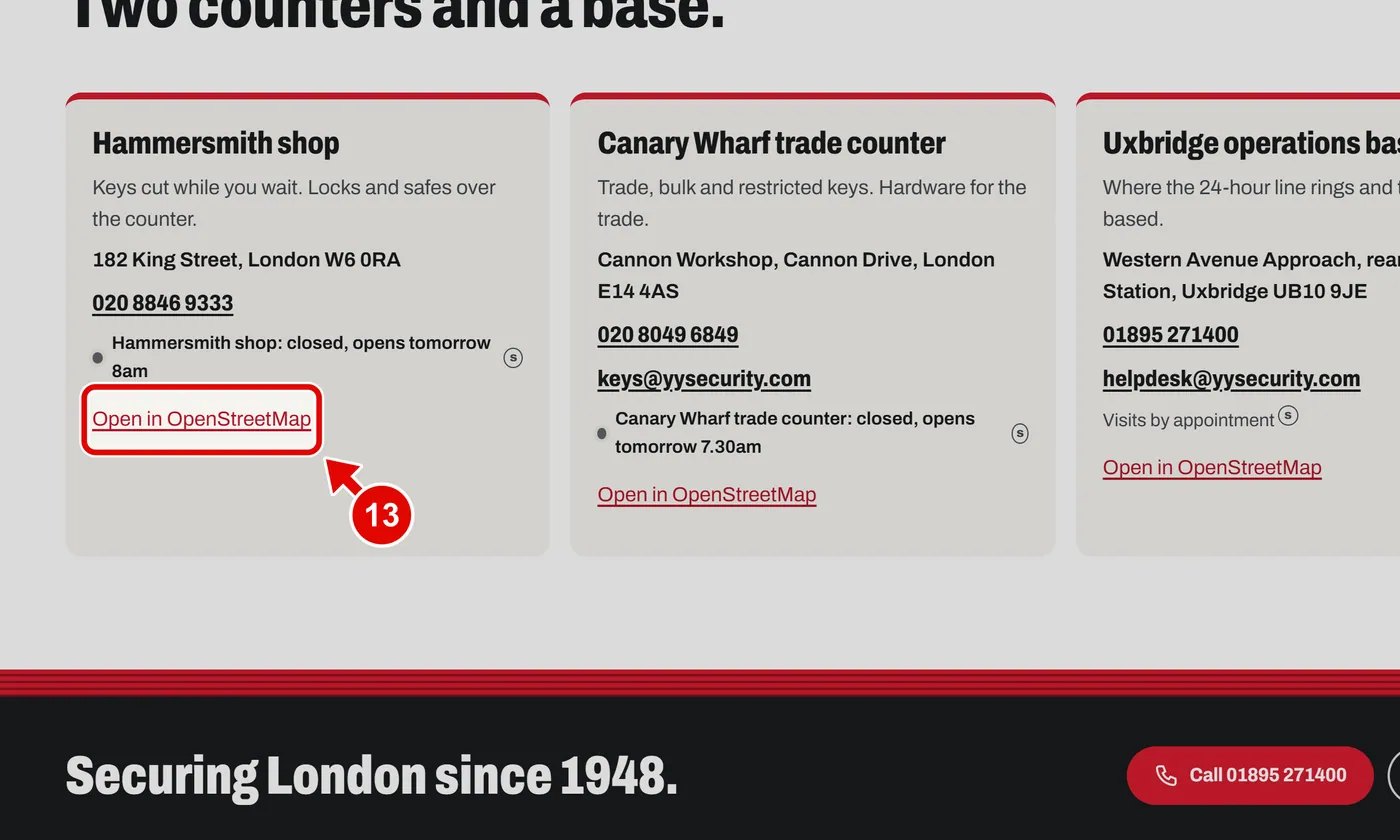
    Screen grab from Contact, on a computer. A red box marks the part to use.
Text us