Part 21 of 24

Client portal

The client portal is for customers with many doors, like housing estates and railway stations. It shows every door, shutter and gate YY looks after.

  1. Step 1. Open Client portal from Tools or the footer. The Account sign-in are written on the page.

  2. Step 2. Click Email and type your account email.

  3. Step 3. Click Password and use the account details issued by YY.

  4. Step 4. Click Sign in.

  5. Step 5. You are in. The tabs along the top are the parts of the portal. Click a tab to open it.

  6. Step 6. Overview. Four boxes: how many assets, how many are overdue, how many are due soon, and open faults.

    Good to know: An asset is one thing YY looks after, like a door, a shutter or a gate.
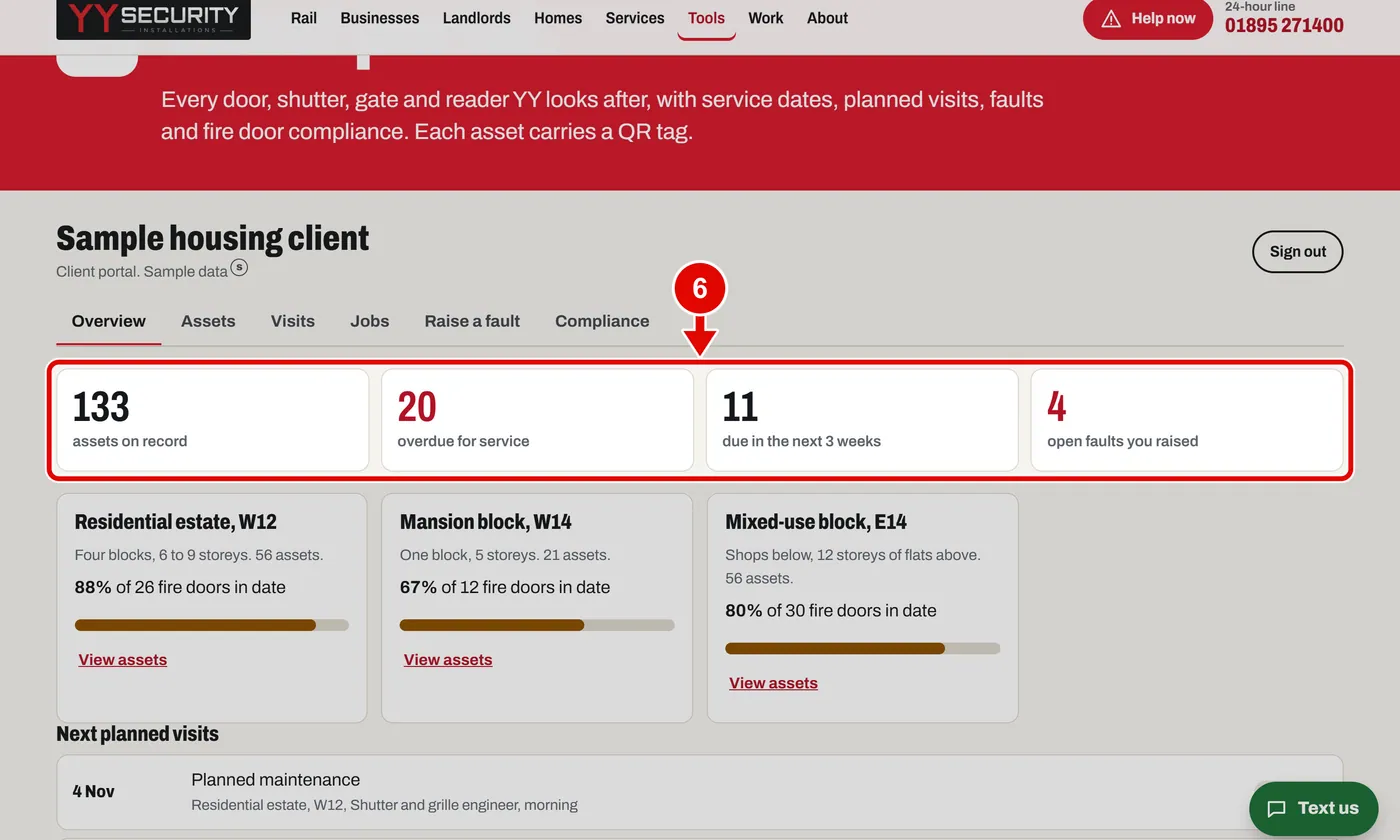
    Screen grab from Client portal, on a computer. A red box marks the part to use.
  7. Step 7. Each site has a box. The bar shows how many fire doors are in date. Click View assets to see that site.
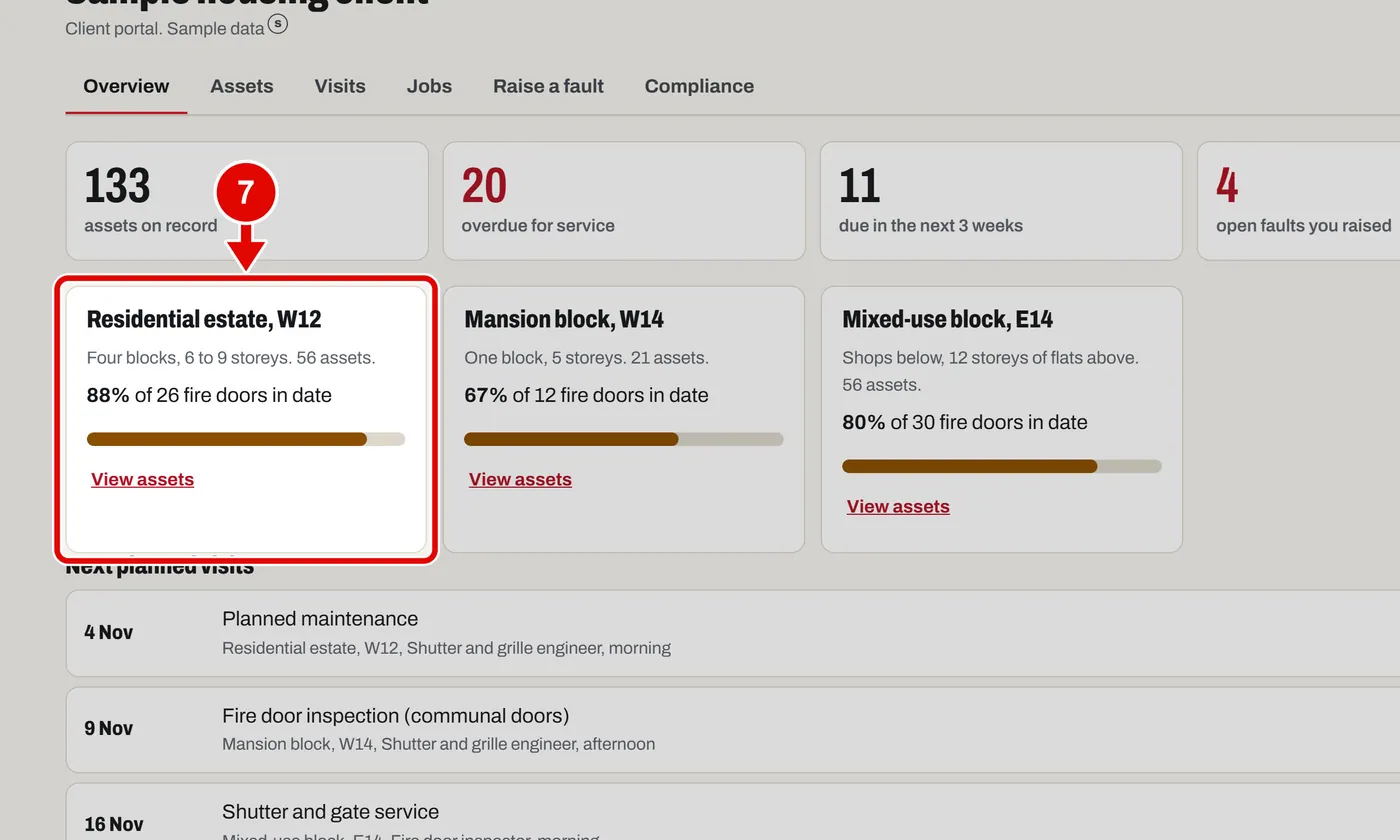
    Screen grab from Client portal, on a computer. A red box marks the part to use.
  8. Step 8. Next planned visits are listed below.
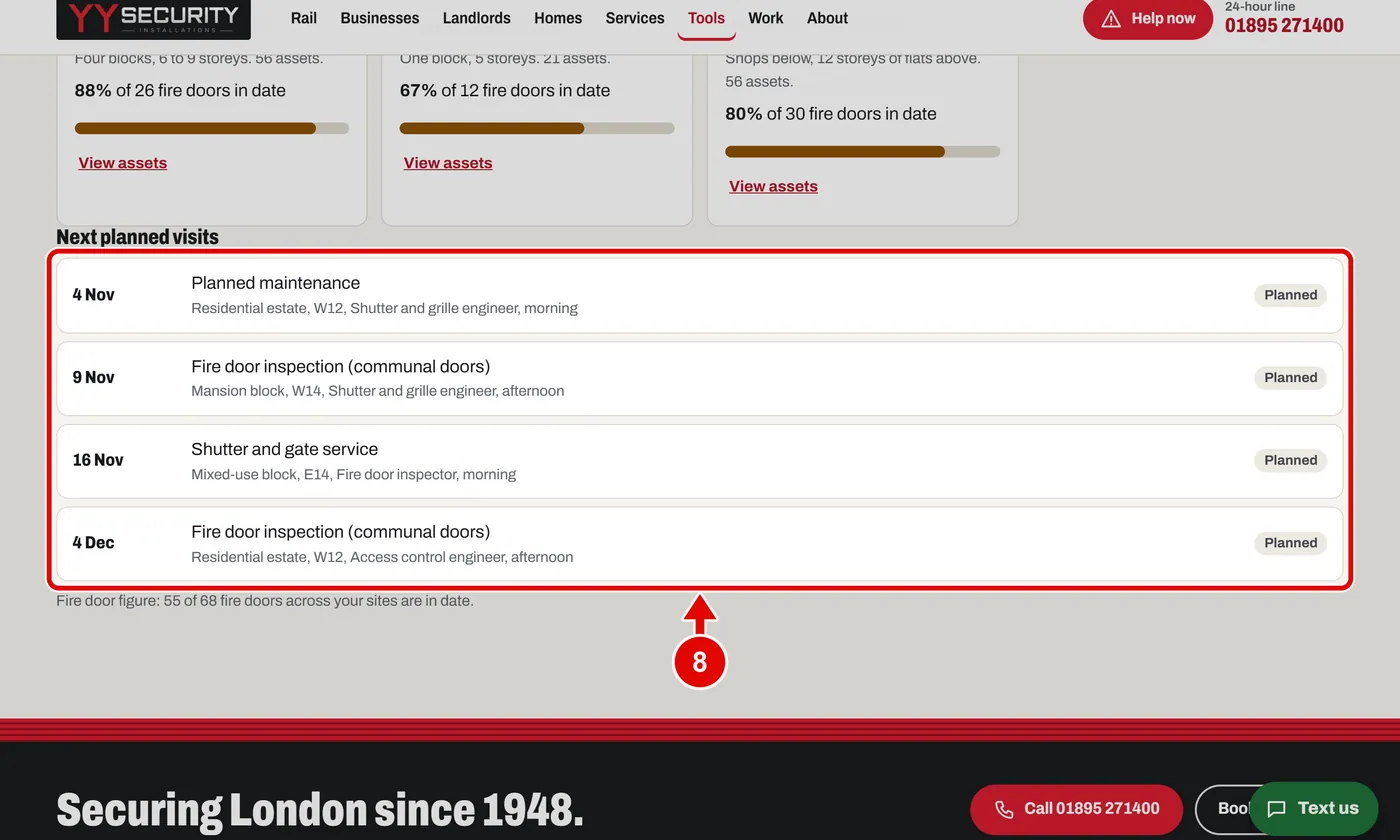
    Screen grab from Client portal, on a computer. A red box marks the part to use.
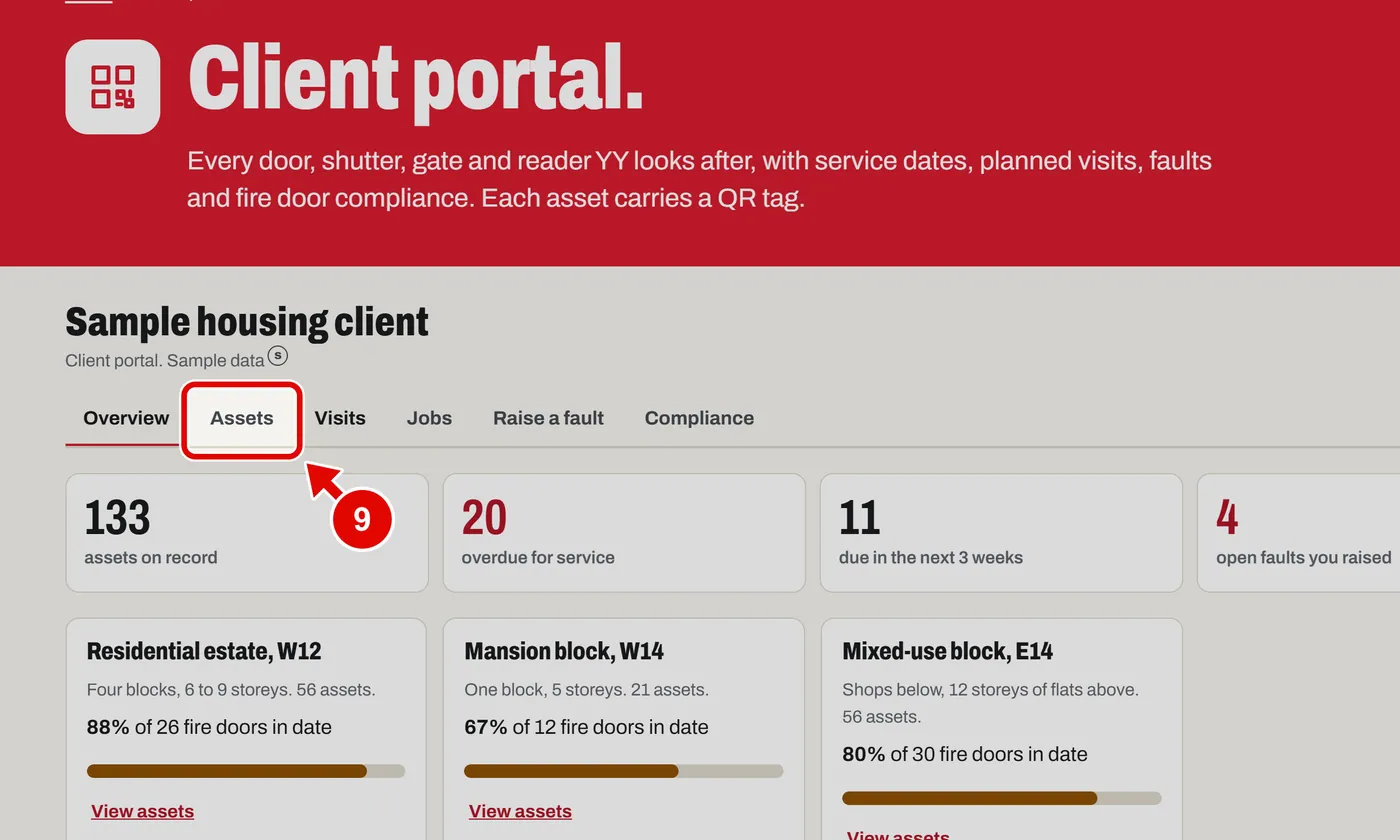
  9. Step 9. Click Assets.

    Screen grab from Client portal, on a computer. A red box marks the part to use.
  10. Step 10. Type in Search to find a tag or a place. We type fire.
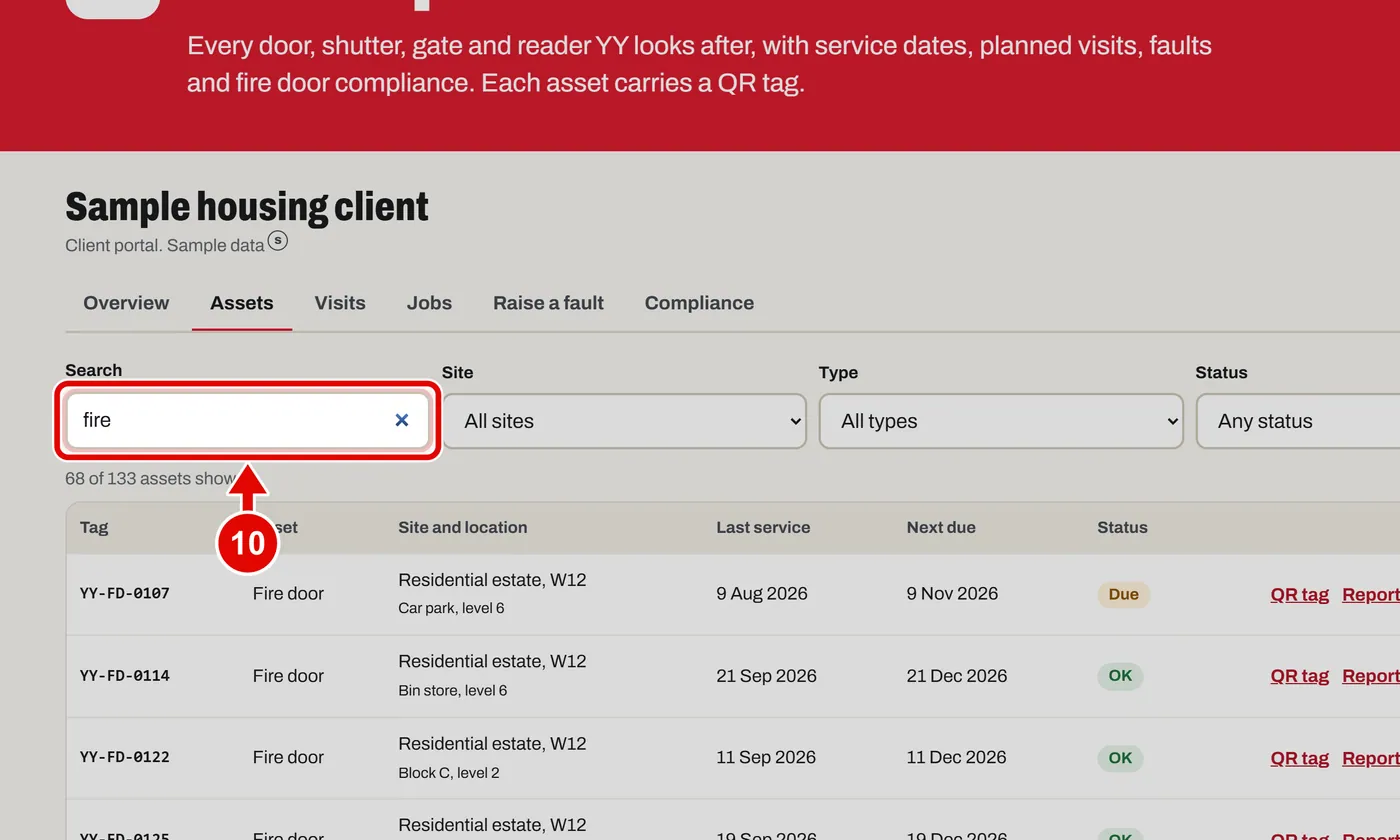
    Screen grab from Client portal, on a computer. A red box marks the part to use.
  11. Step 11. Or pick one site from the Site list.
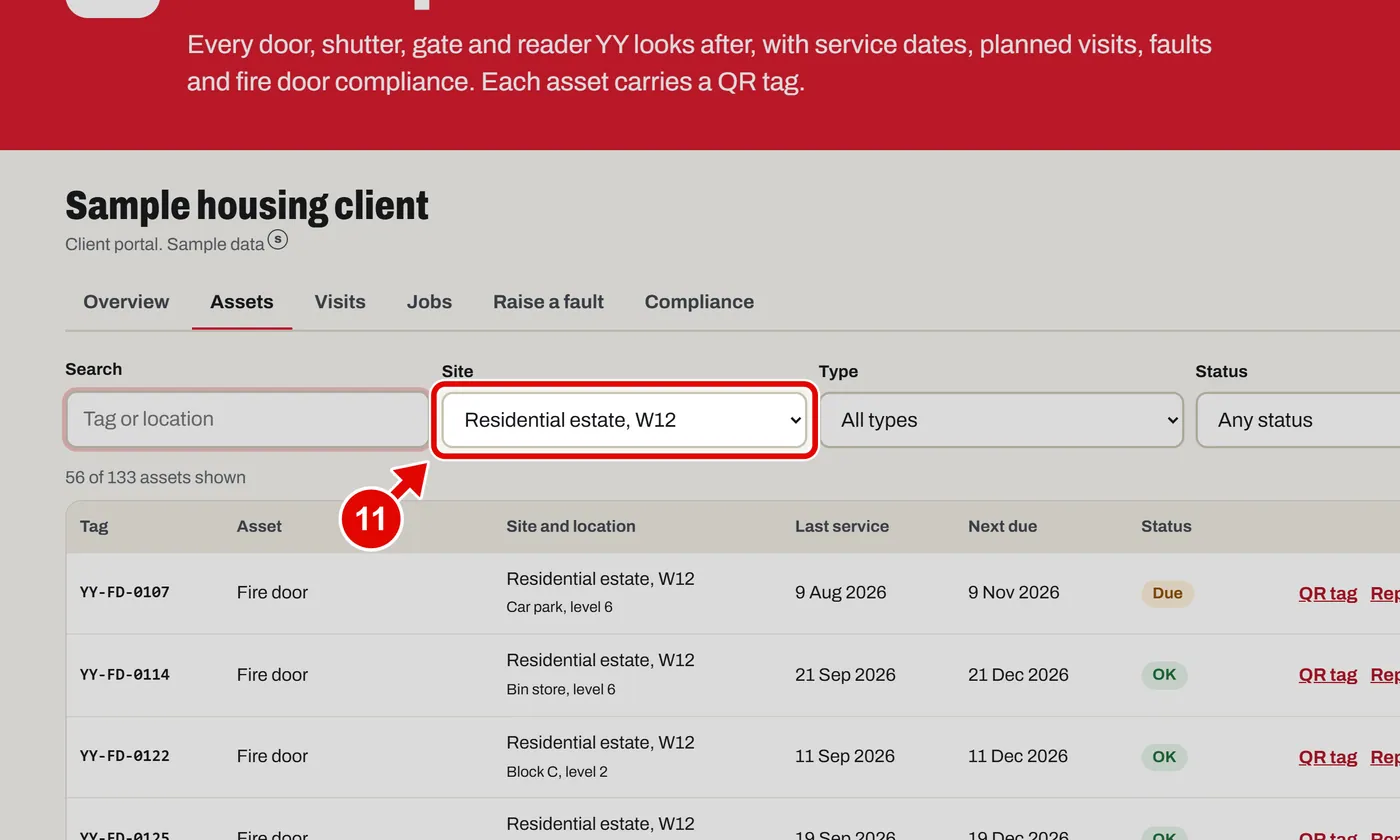
    Screen grab from Client portal, on a computer. A red box marks the part to use.
  12. Step 12. Pick a type, like Fire door.
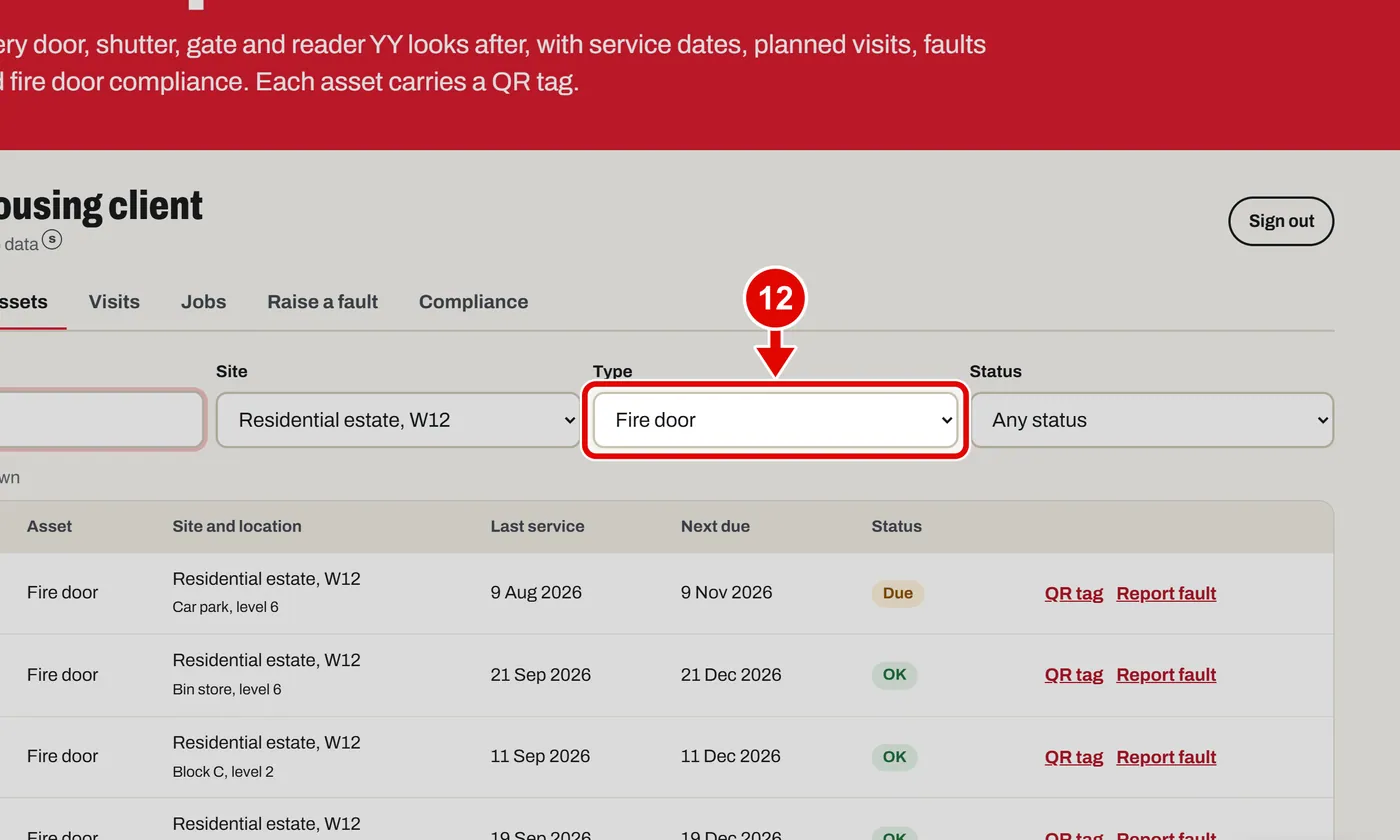
    Screen grab from Client portal, on a computer. A red box marks the part to use.
  13. Step 13. You can also pick a status: OK, Due, Overdue or Fault.
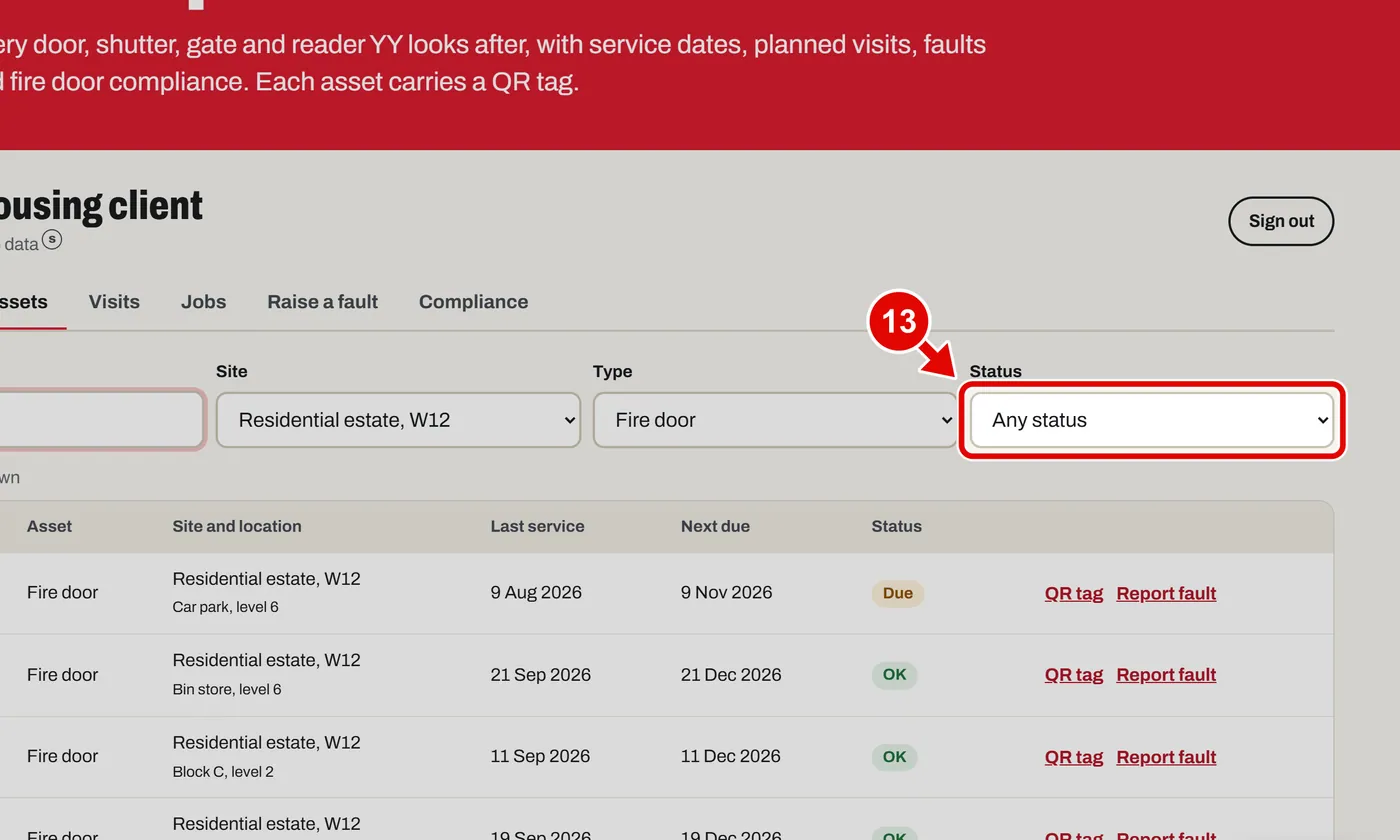
    Screen grab from Client portal, on a computer. A red box marks the part to use.
  14. Step 14. This line tells you how many assets match.
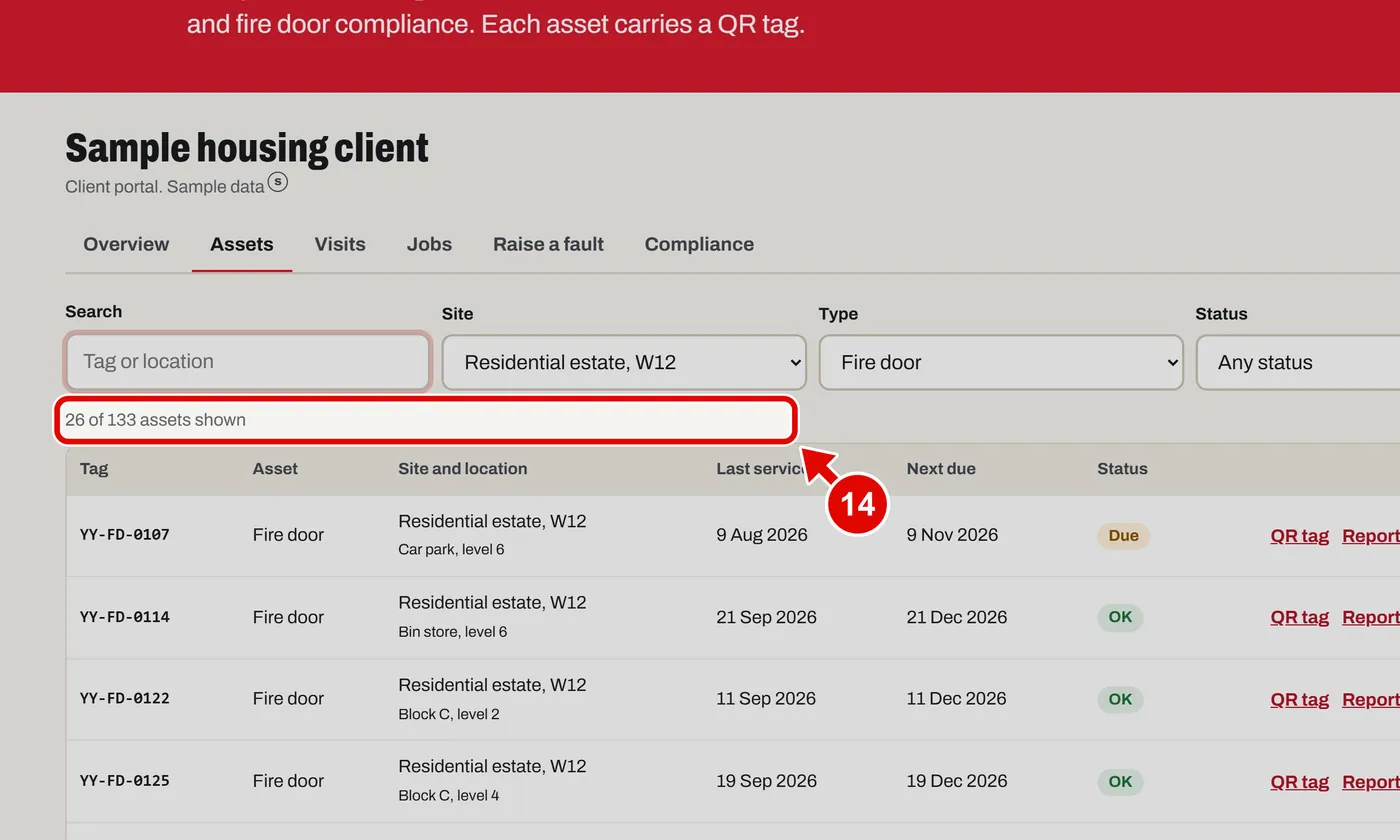
    Screen grab from Client portal, on a computer. A red box marks the part to use.
  15. Step 15. Click QR tag next to an asset.
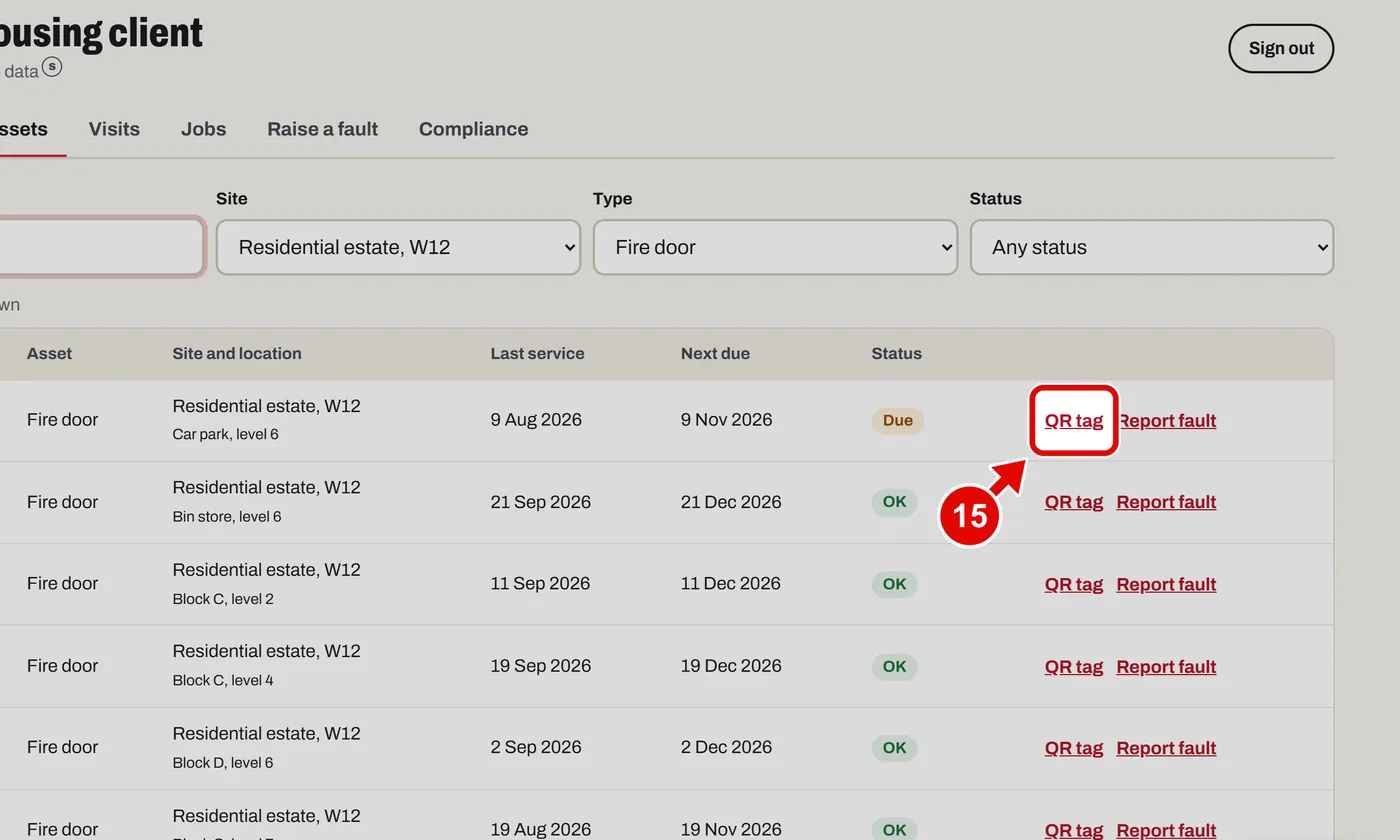
    Screen grab from Client portal, on a computer. A red box marks the part to use.
  16. Step 16. The QR tag appears. Print it and stick it on the door, shutter or gate.
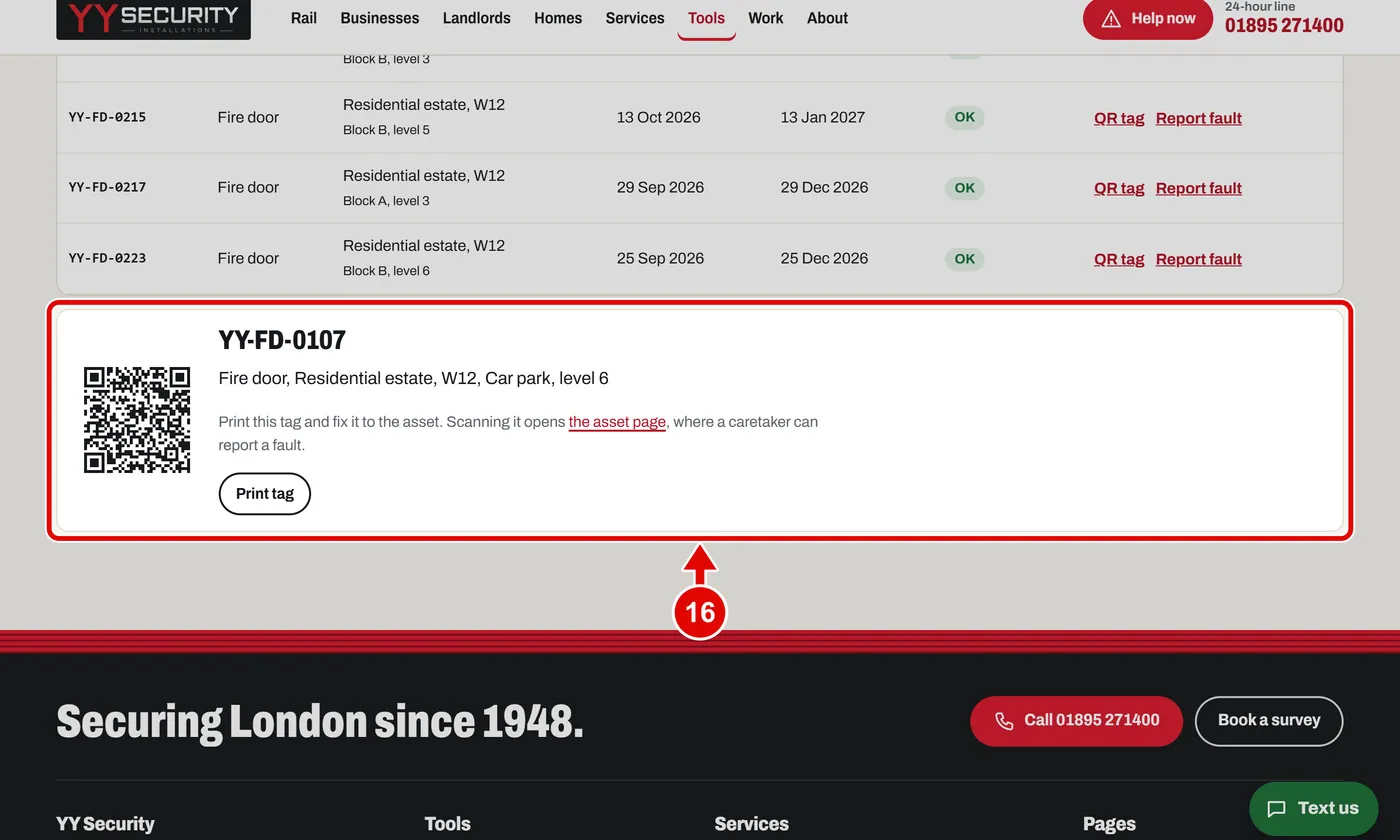
    Screen grab from Client portal, on a computer. A red box marks the part to use.
  17. Step 17. Click Print tag to print it.
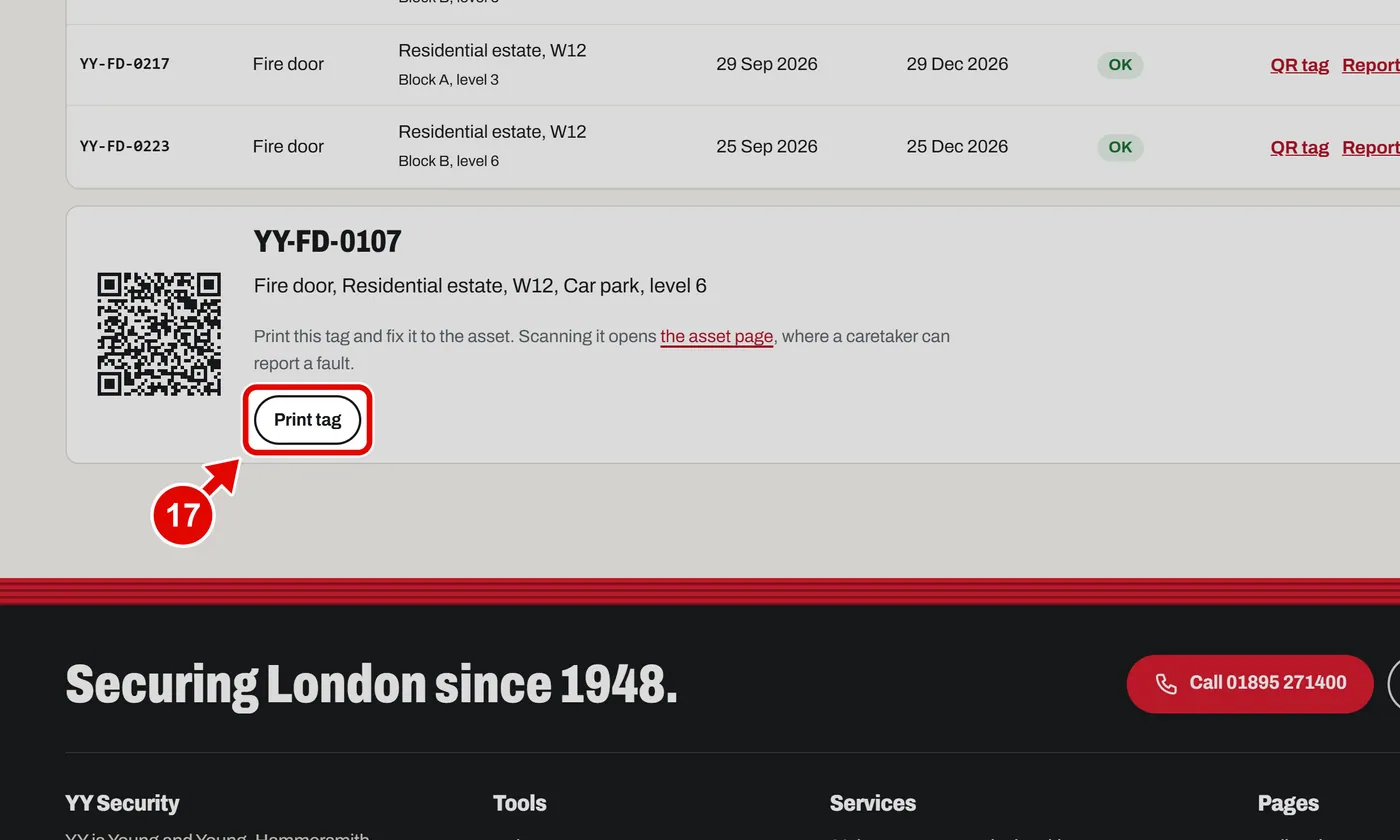
    Screen grab from Client portal, on a computer. A red box marks the part to use.
  18. Step 18. Click the asset page link to open the page for that asset.
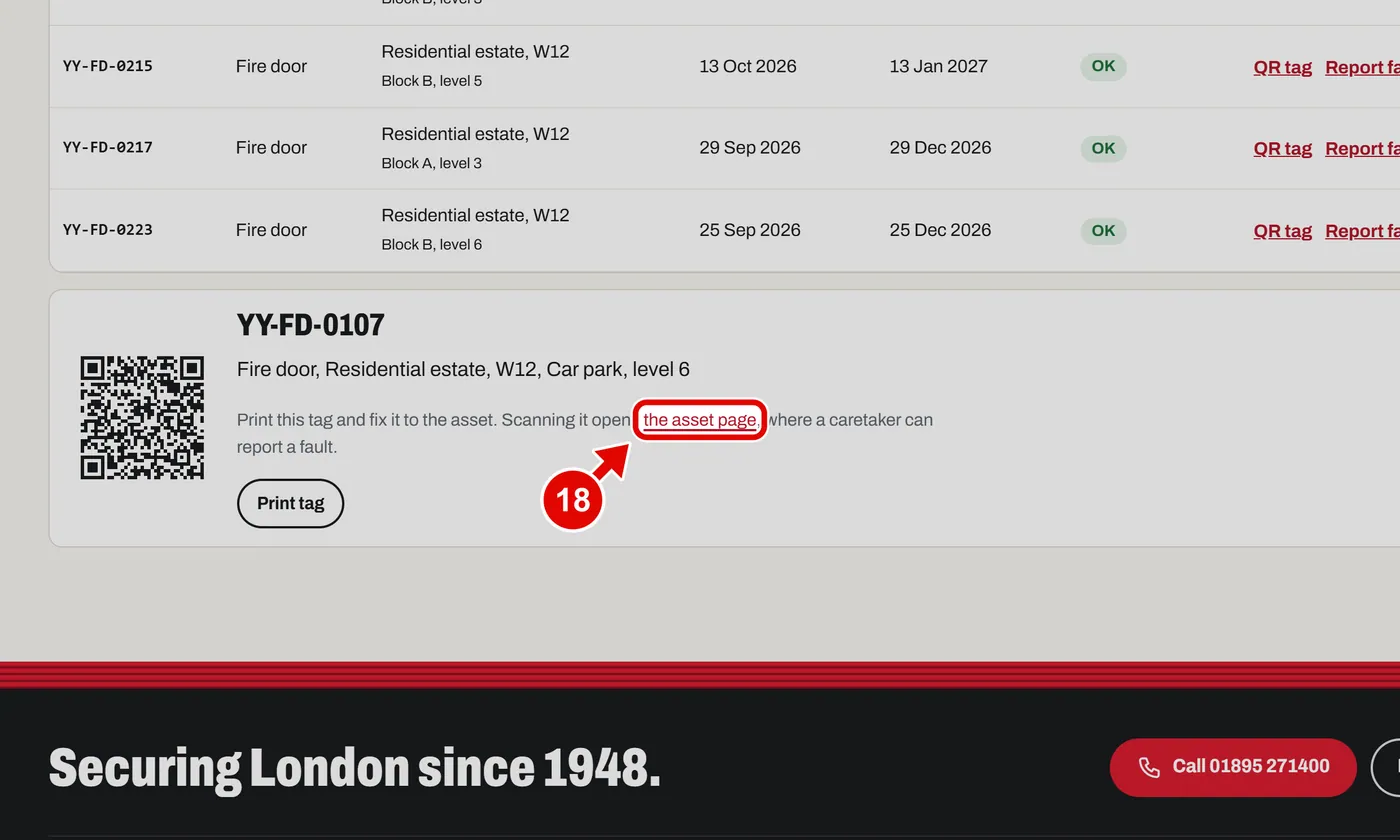
    Screen grab from Client portal, on a computer. A red box marks the part to use.
  19. Step 19. The asset page: when it was fitted, the last service, and when the next one is due. Anyone who scans the tag lands here.
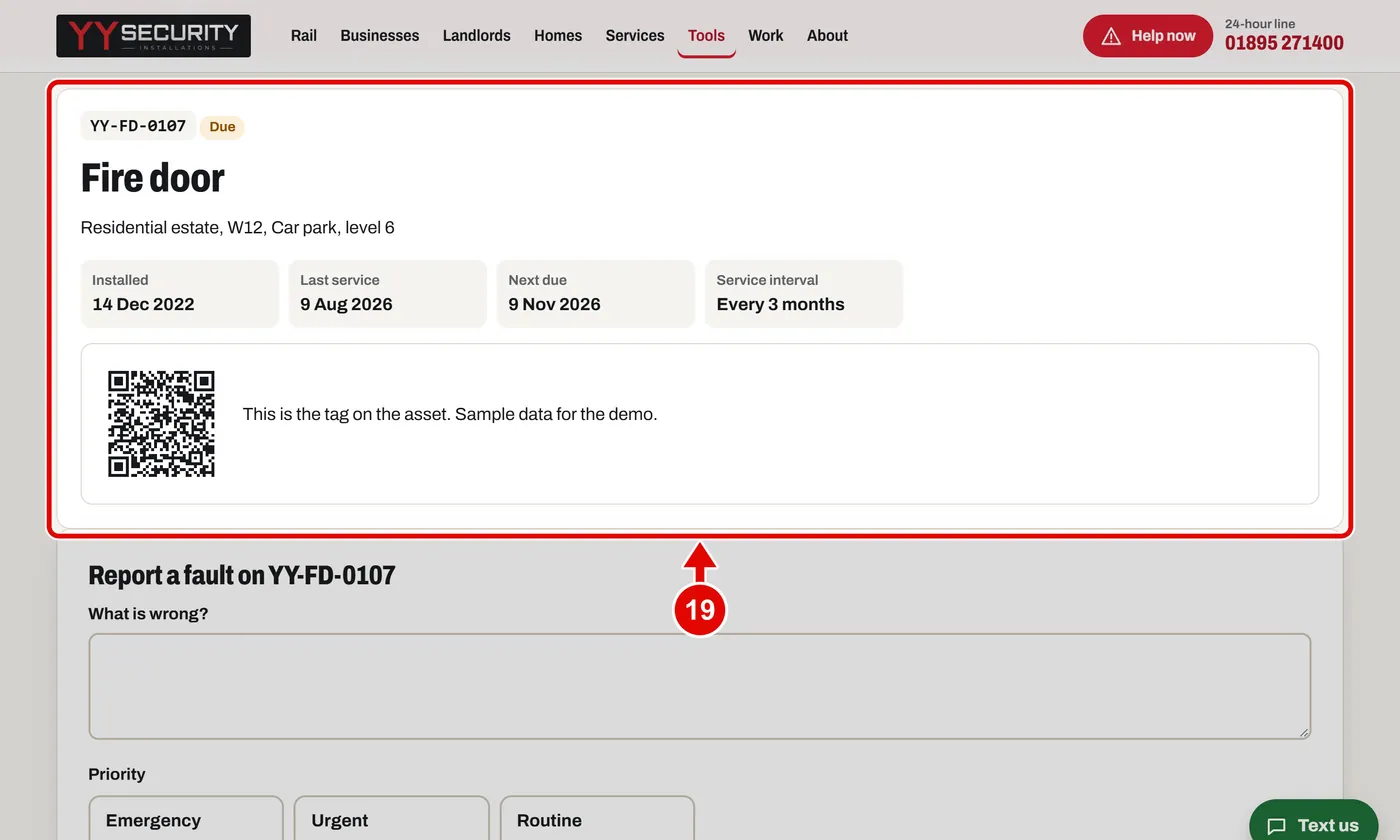
    Screen grab from Client portal, on a computer. A red box marks the part to use.
  20. Step 20. To report a problem, click the Raise a fault tab. Pick the asset from the list.
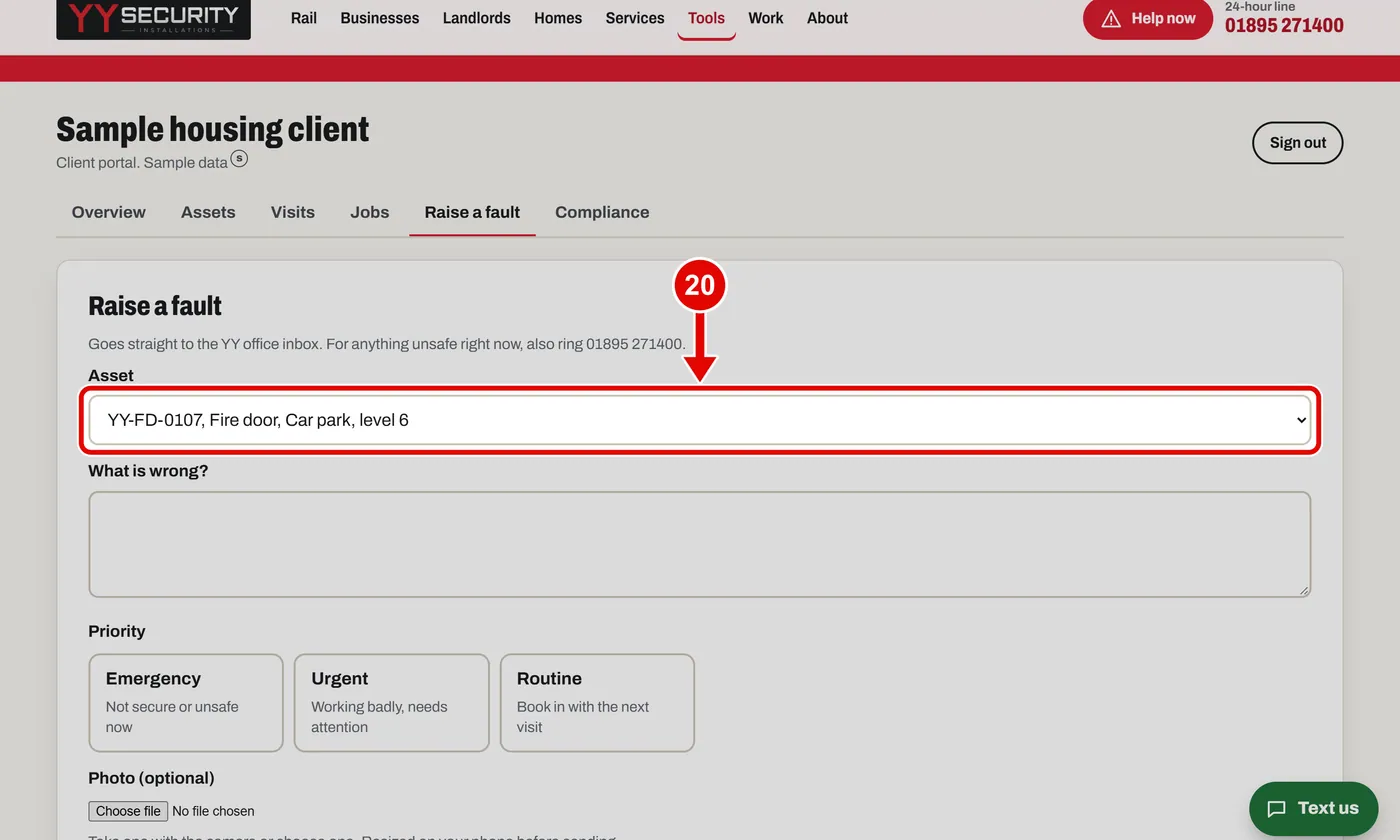
    Screen grab from Client portal, on a computer. A red box marks the part to use.
  21. Step 21. Type what is wrong. Use at least 10 letters.
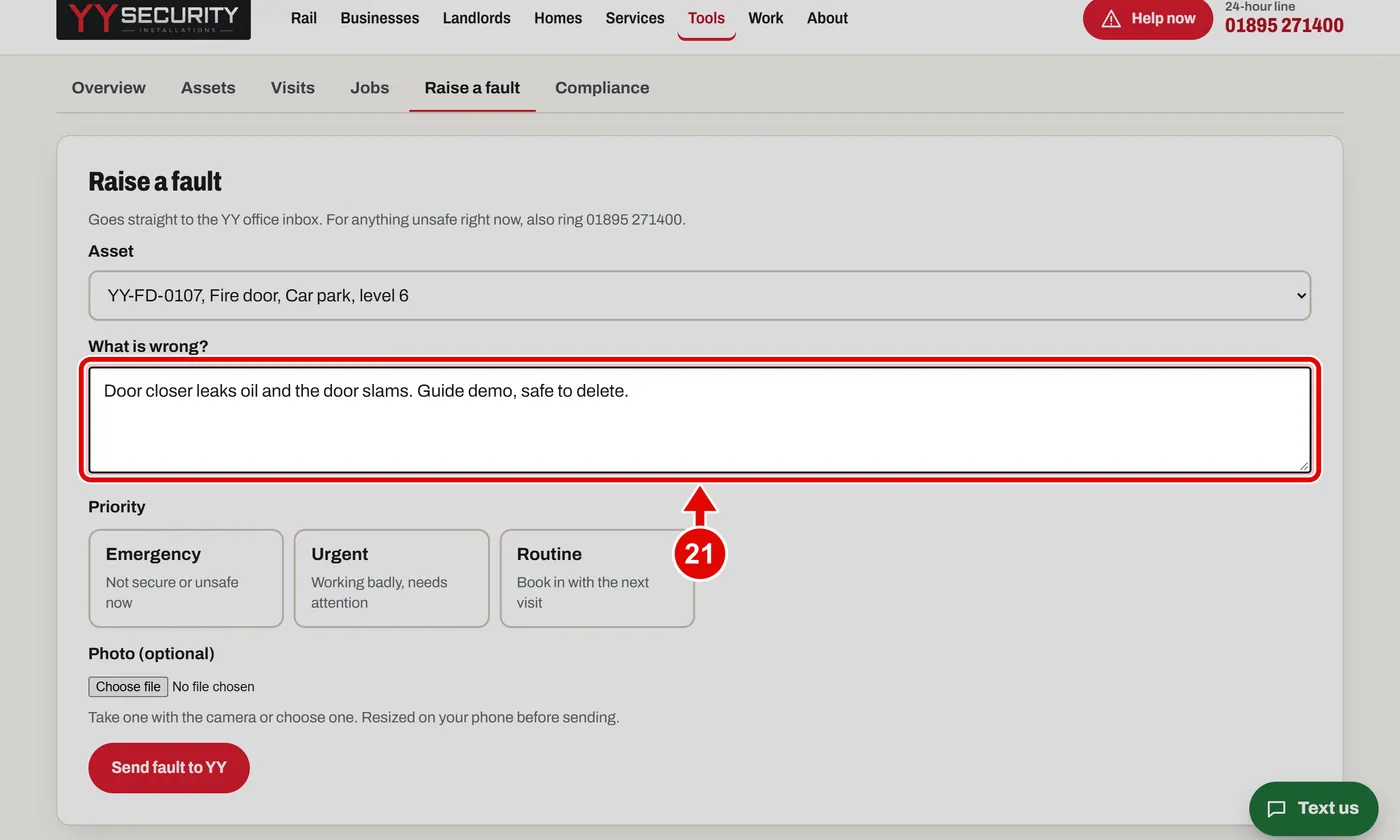
    Screen grab from Client portal, on a computer. A red box marks the part to use.
  22. Step 22. Pick how urgent it is: Emergency, Urgent or Routine.
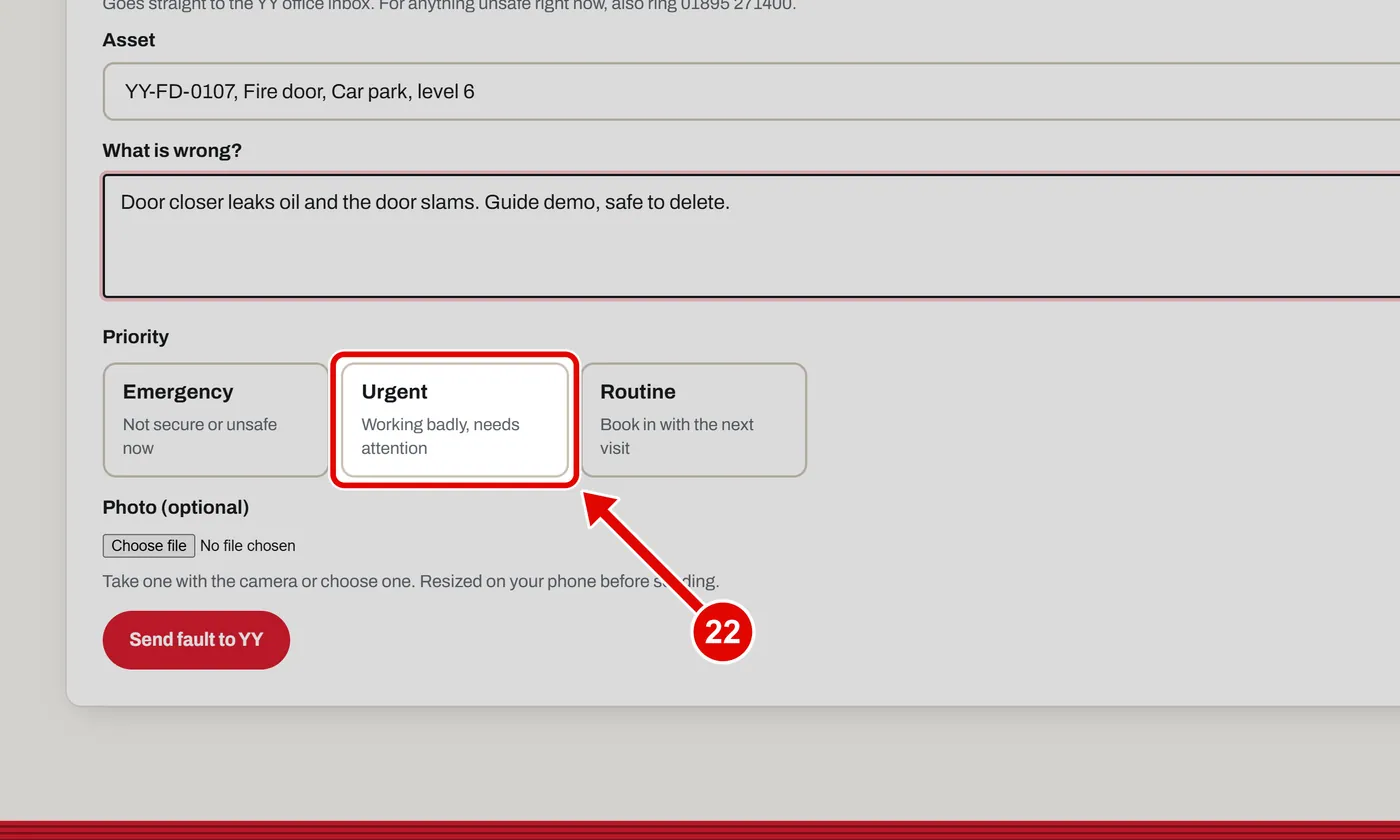
    Screen grab from Client portal, on a computer. A red box marks the part to use.
  23. Step 23. Got a photo? Click Choose file and pick it.
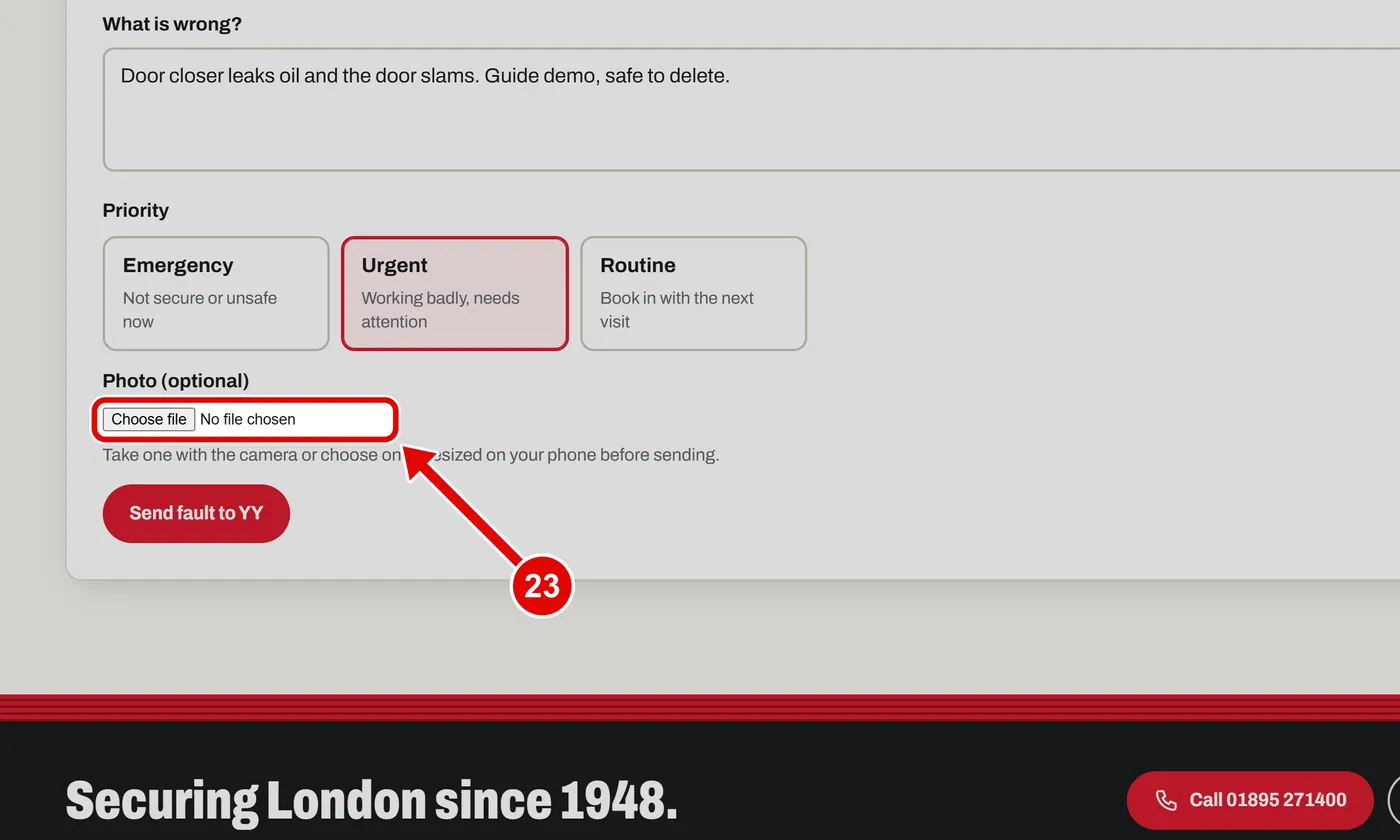
    Screen grab from Client portal, on a computer. A red box marks the part to use.
  24. Step 24. Wait until it says Photo ready.
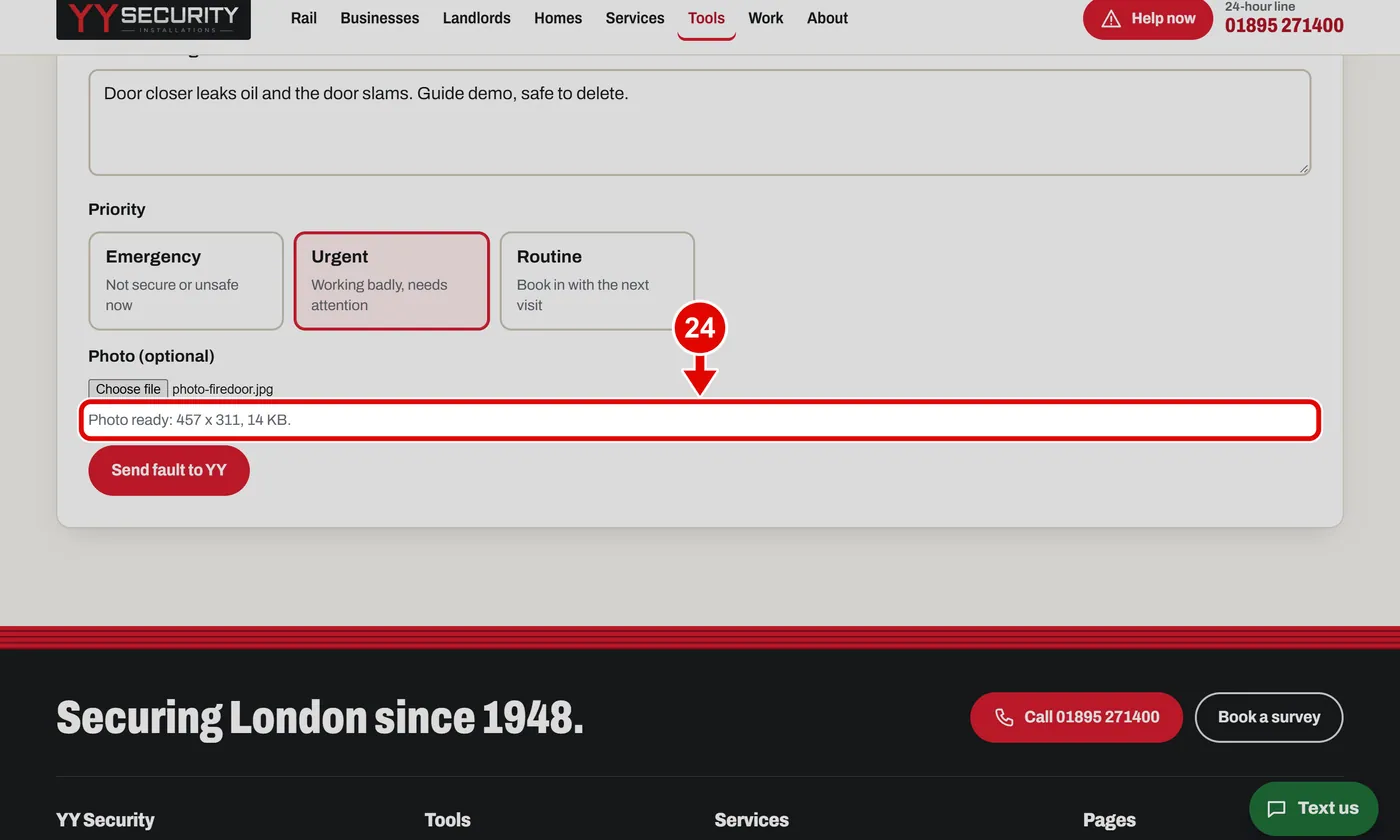
    Screen grab from Client portal, on a computer. A red box marks the part to use.
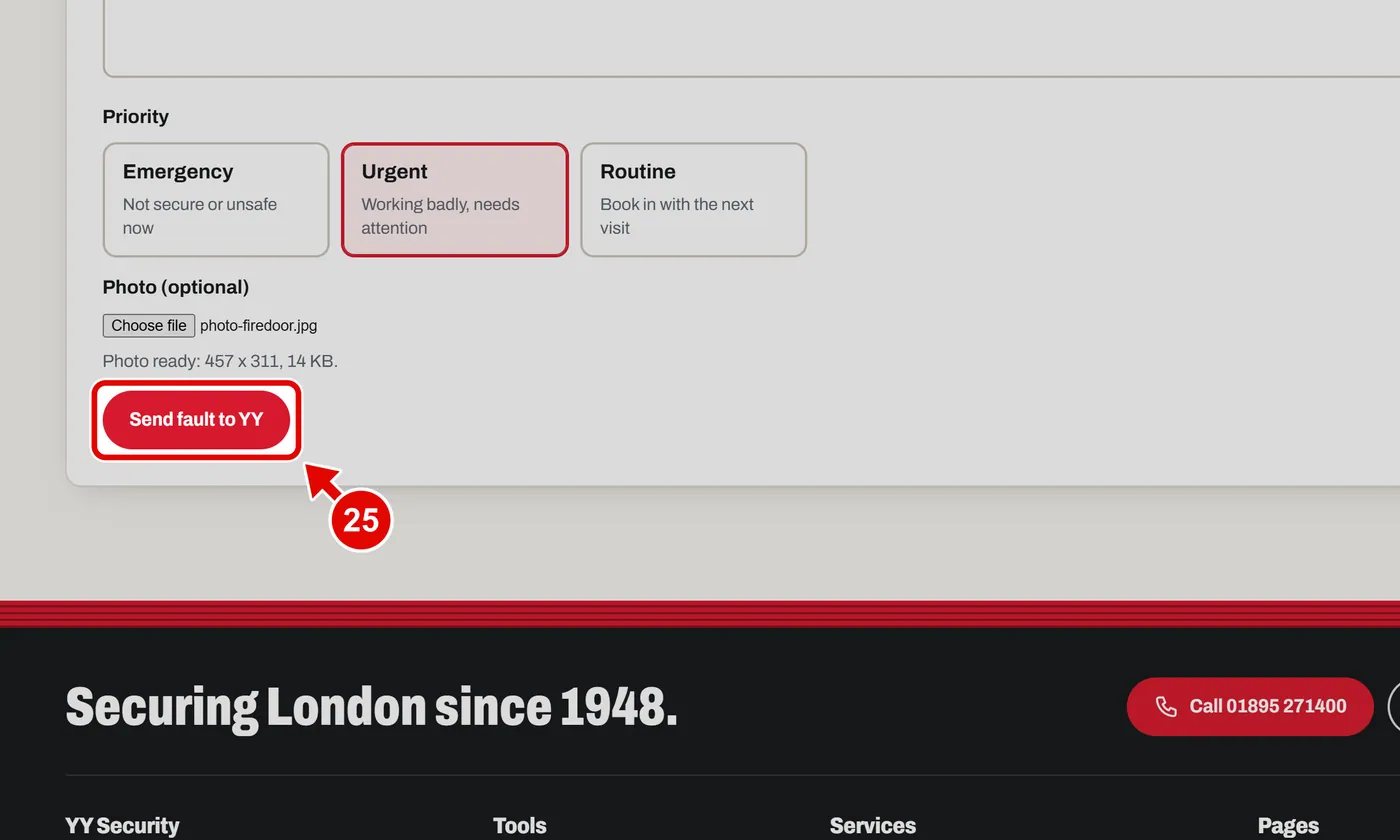
  25. Step 25. Click Send fault to YY.

    Screen grab from Client portal, on a computer. A red box marks the part to use.
  26. Step 26. Done. You get a reference. The YY office sees it straight away.
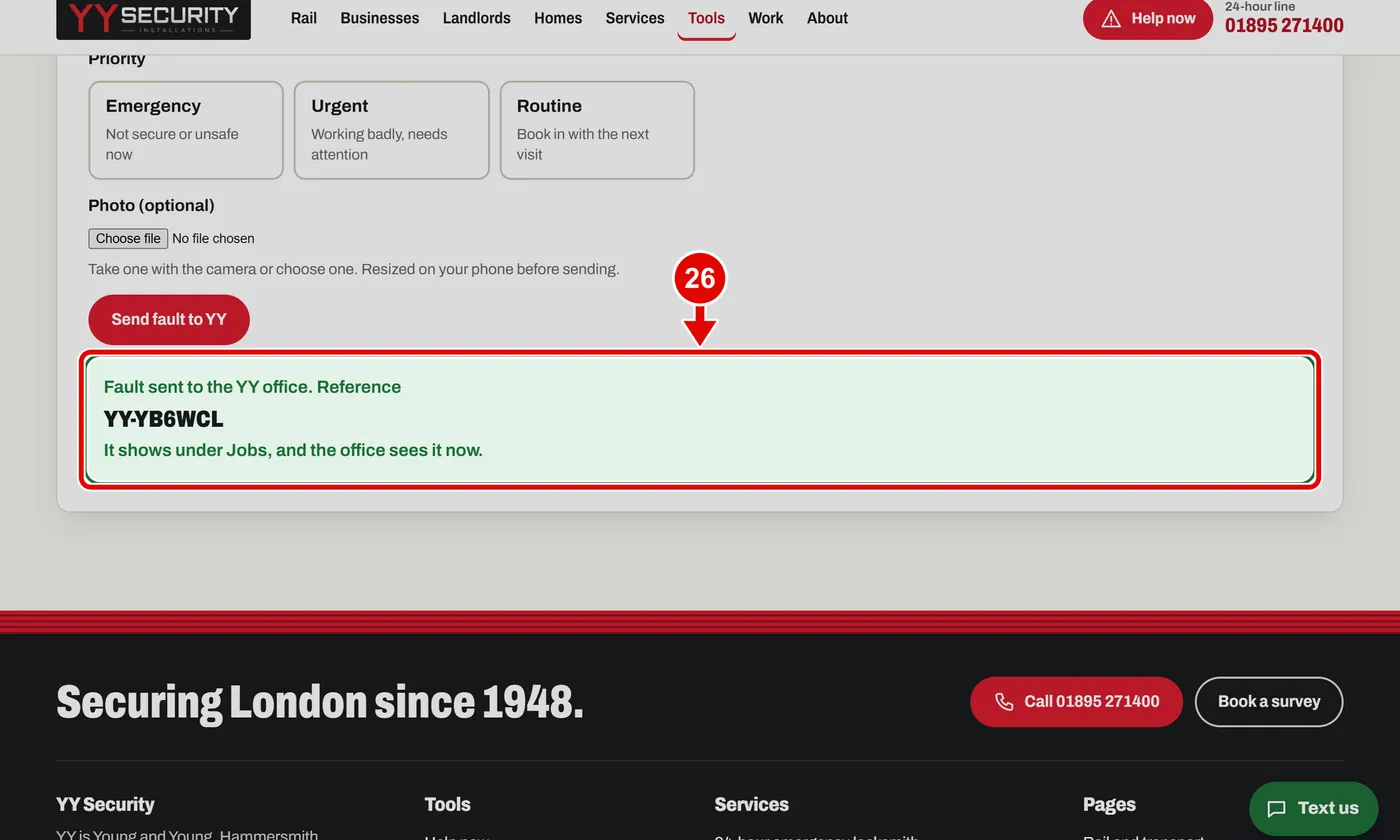
    Screen grab from Client portal, on a computer. A red box marks the part to use.
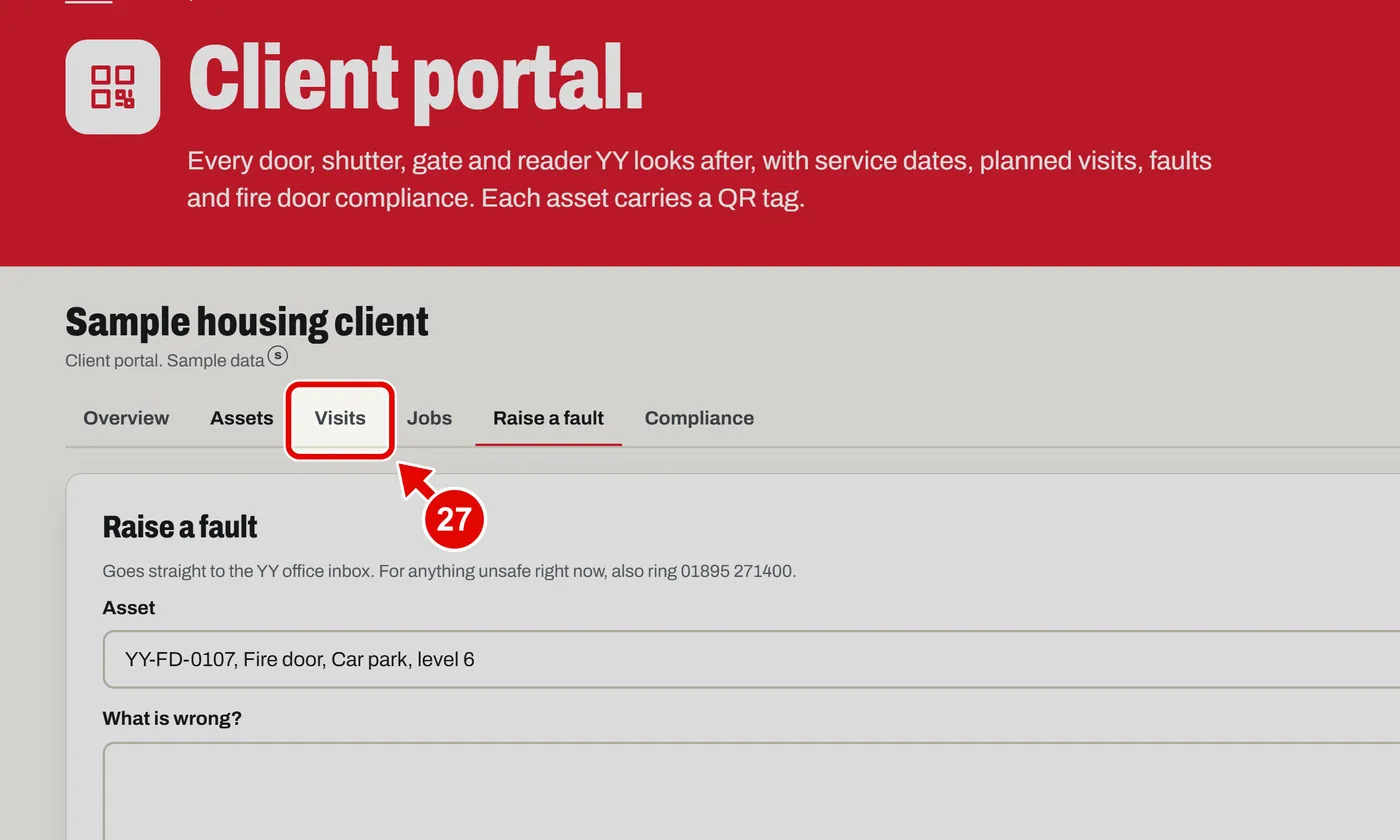
  27. Step 27. Click Visits.

    Screen grab from Client portal, on a computer. A red box marks the part to use.
  28. Step 28. Visits shows what is overdue, and the visits planned for the next 12 weeks.
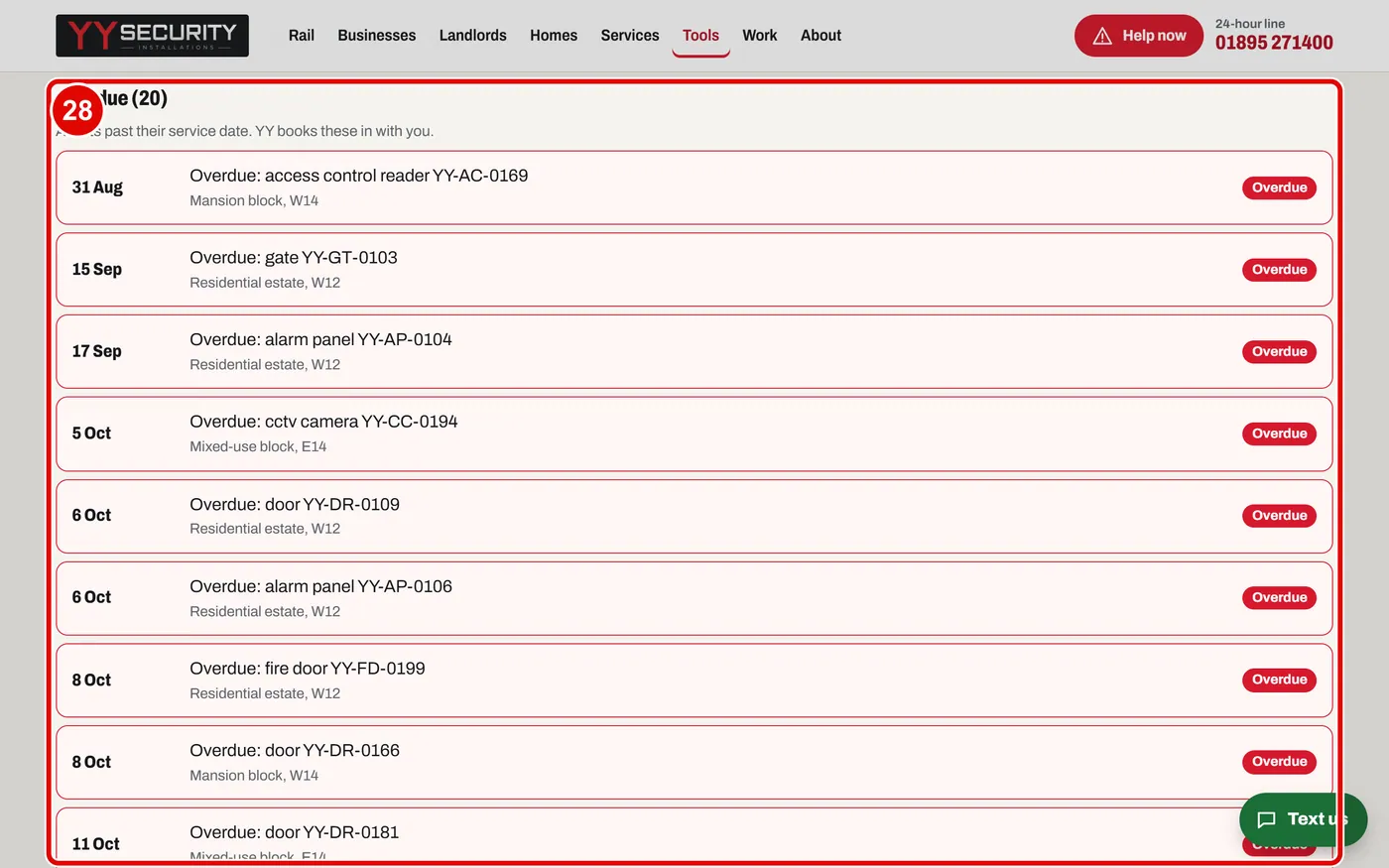
    Screen grab from Client portal, on a computer. A red box marks the part to use.
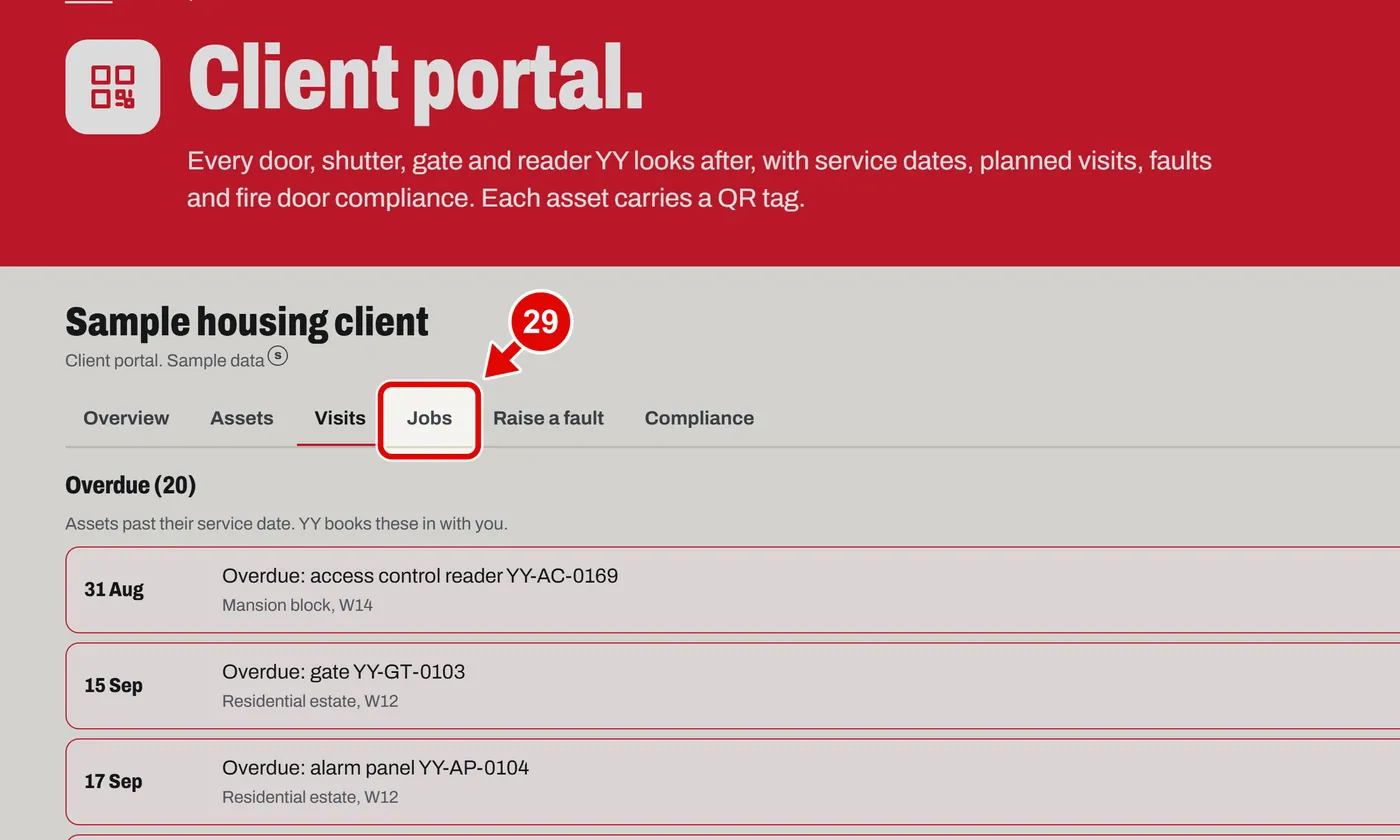
  29. Step 29. Click Jobs.

    Screen grab from Client portal, on a computer. A red box marks the part to use.
  30. Step 30. Open faults you raised are at the top, with their photos and status.
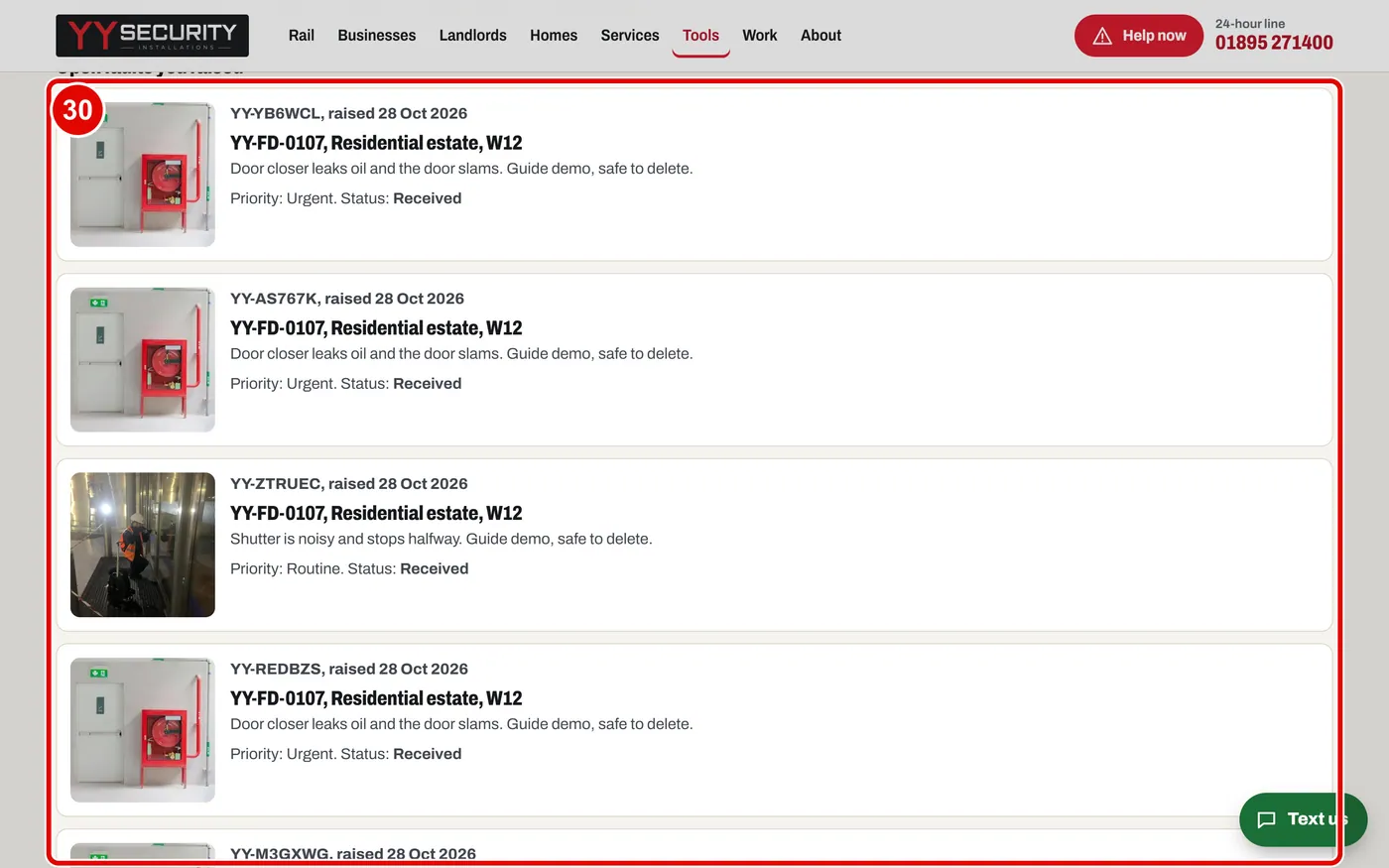
    Screen grab from Client portal, on a computer. A red box marks the part to use.
  31. Step 31. Job history is below. Click Visit report to open one.
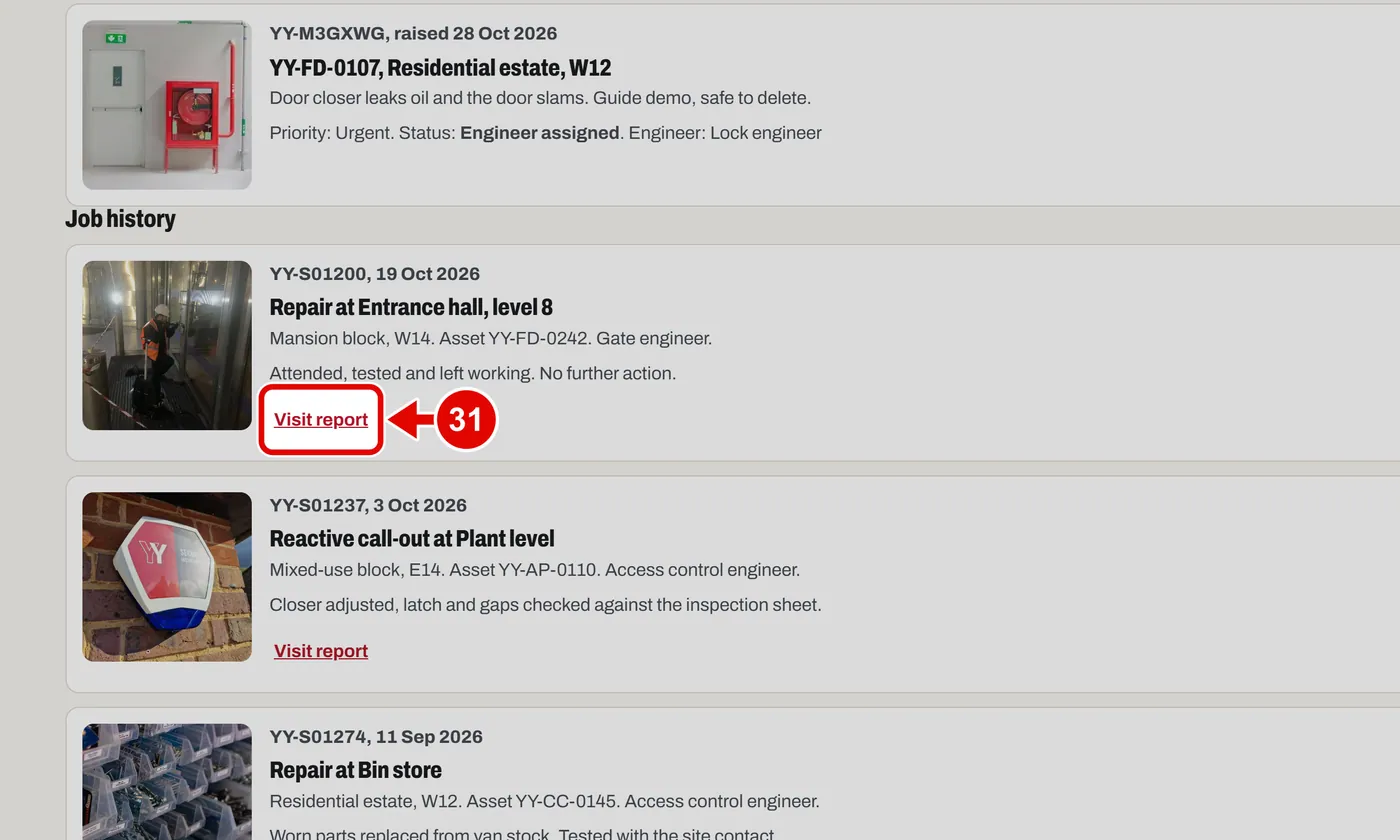
    Screen grab from Client portal, on a computer. A red box marks the part to use.
  32. Step 32. The visit report: date, site, asset, engineer, notes and a photo.
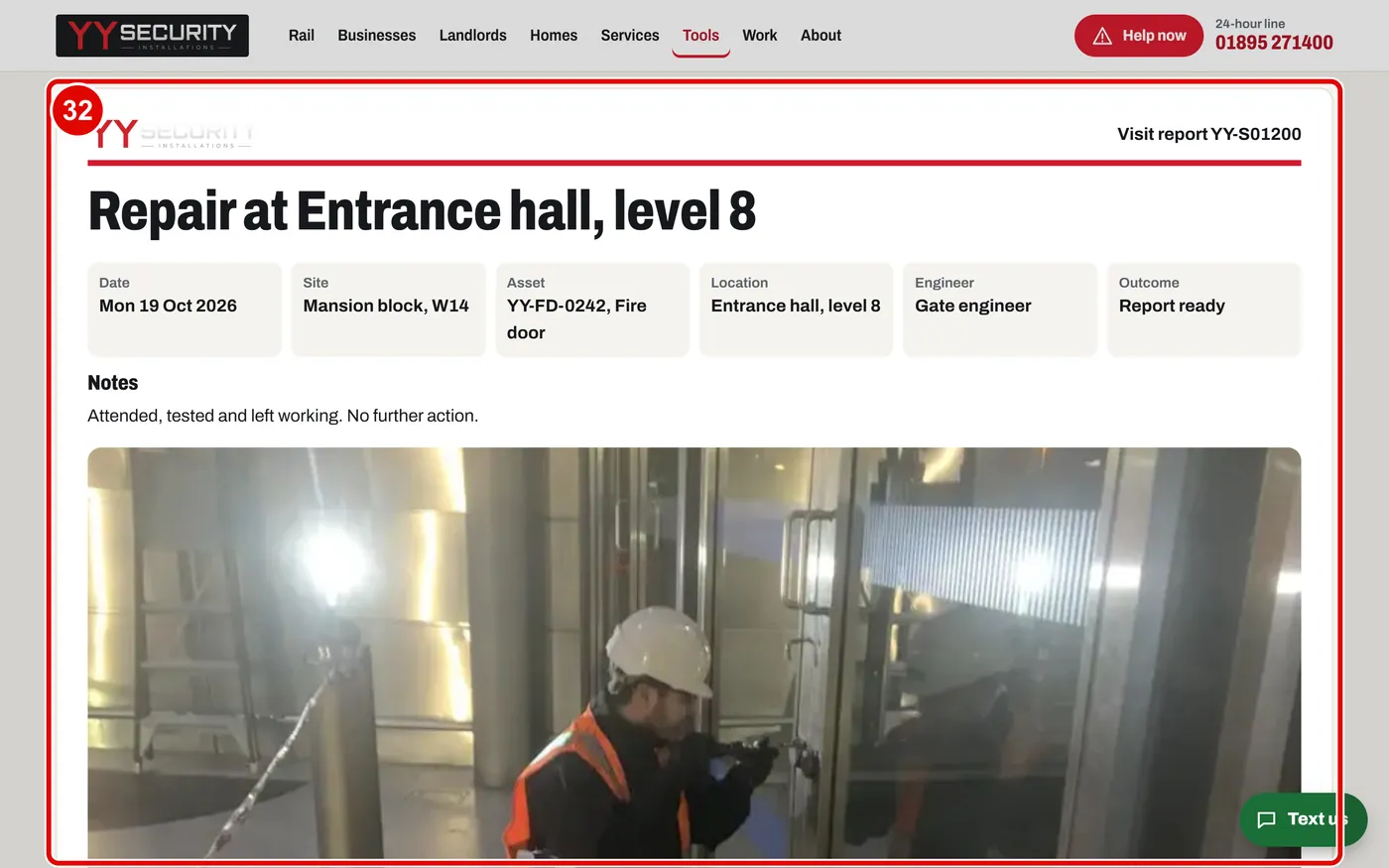
    Screen grab from Client portal, on a computer. A red box marks the part to use.
  33. Step 33. Click Print or save as PDF to keep a copy.
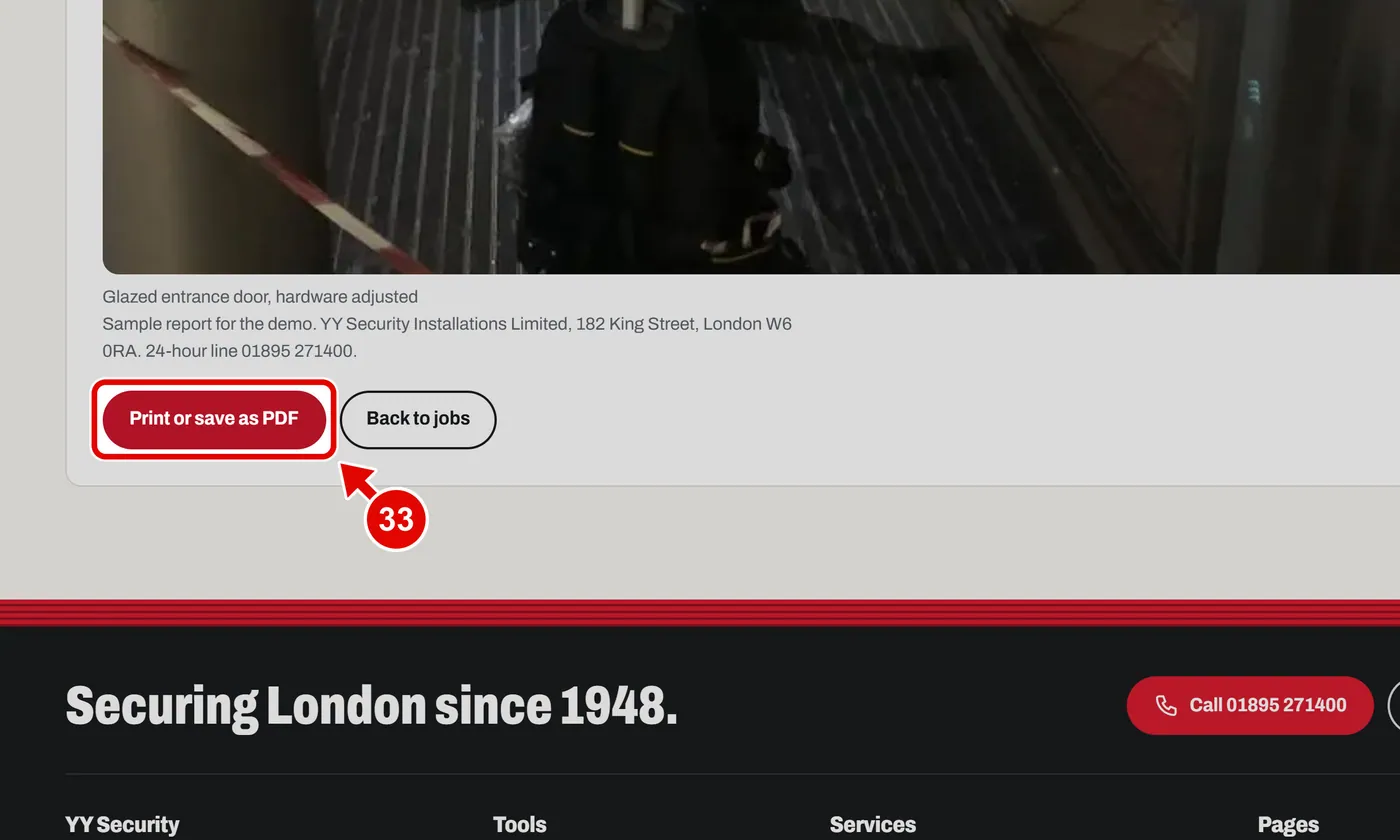
    Screen grab from Client portal, on a computer. A red box marks the part to use.
  34. Step 34. Click Back to jobs to go back.
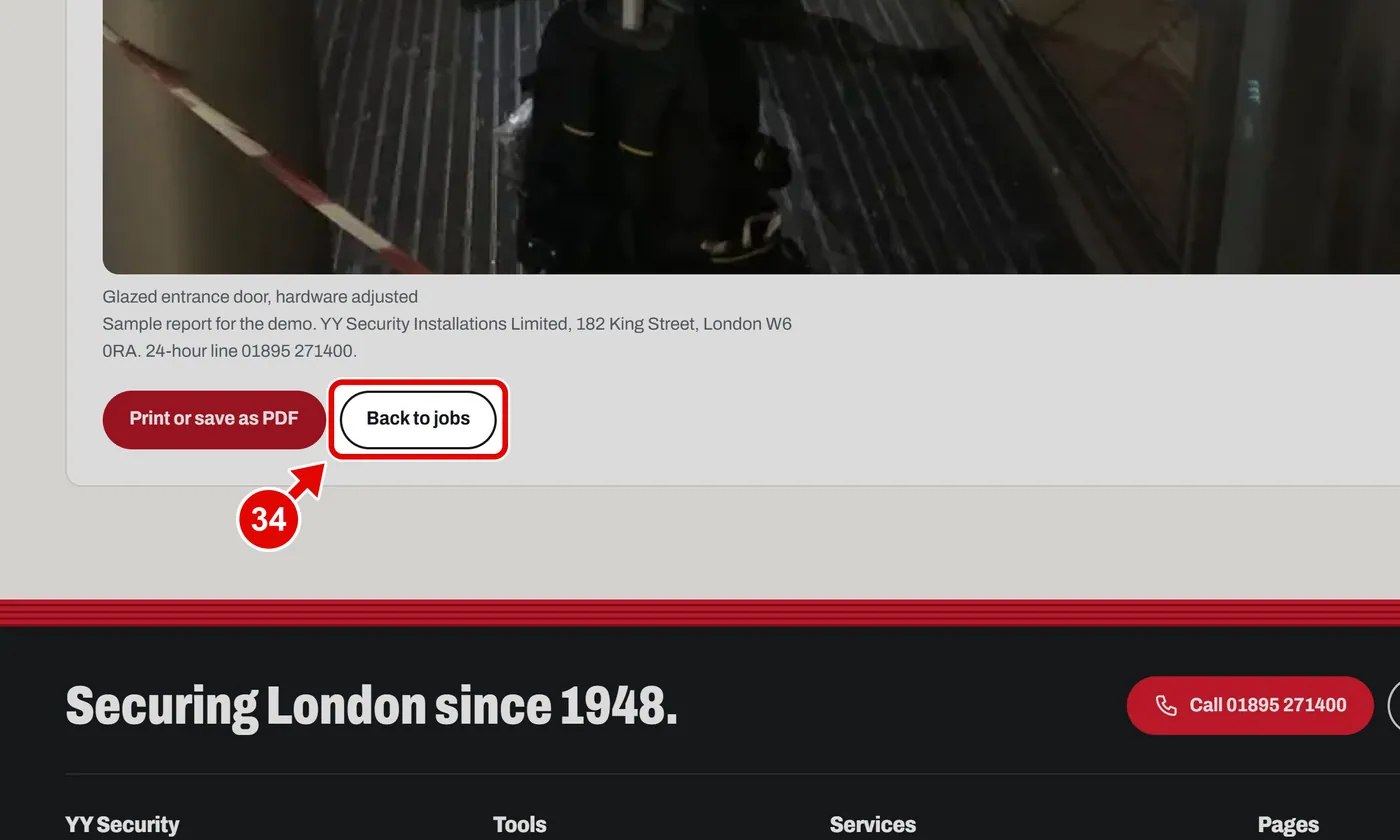
    Screen grab from Client portal, on a computer. A red box marks the part to use.
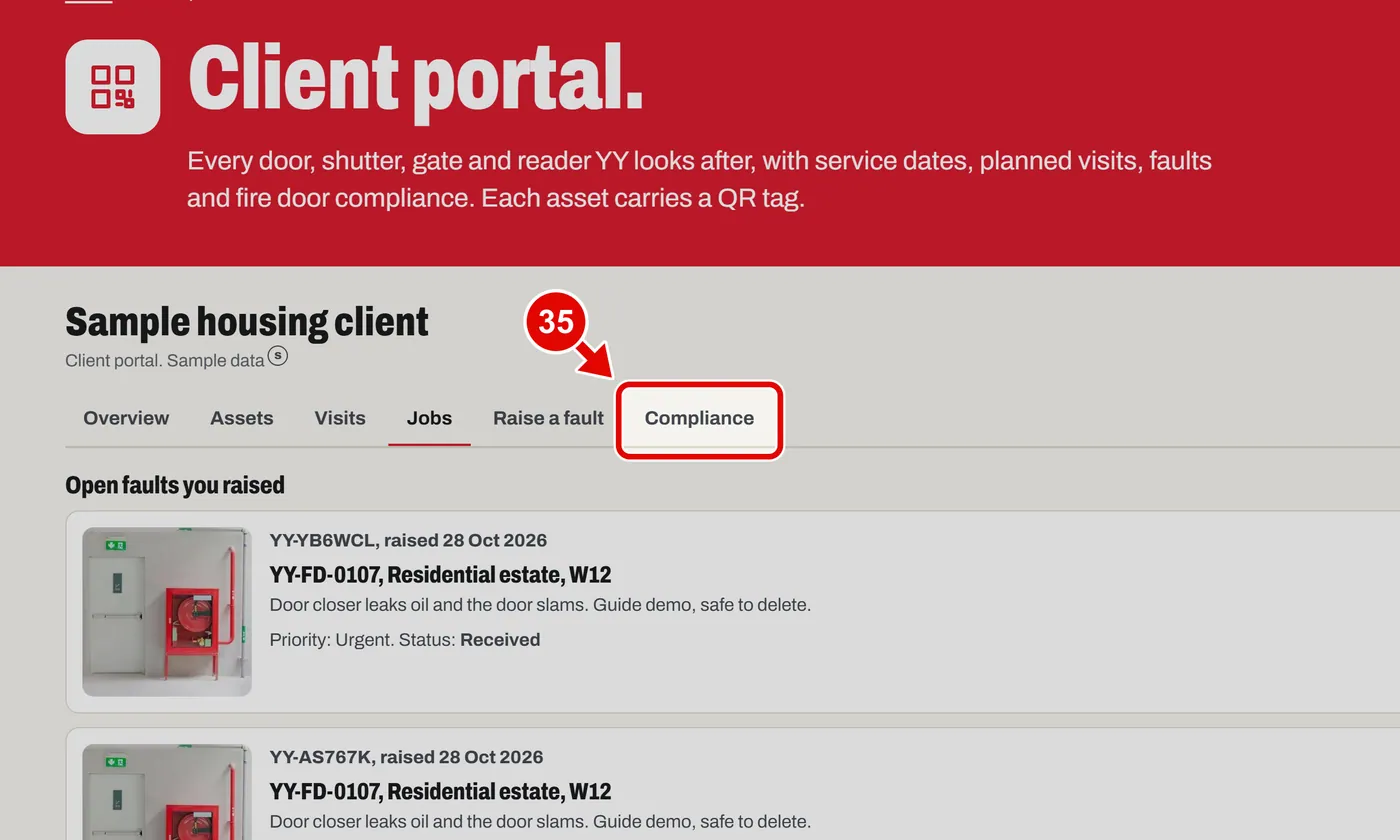
  35. Step 35. Click Compliance.

    Screen grab from Client portal, on a computer. A red box marks the part to use.
  36. Step 36. Each site shows how many fire door checks are in date.
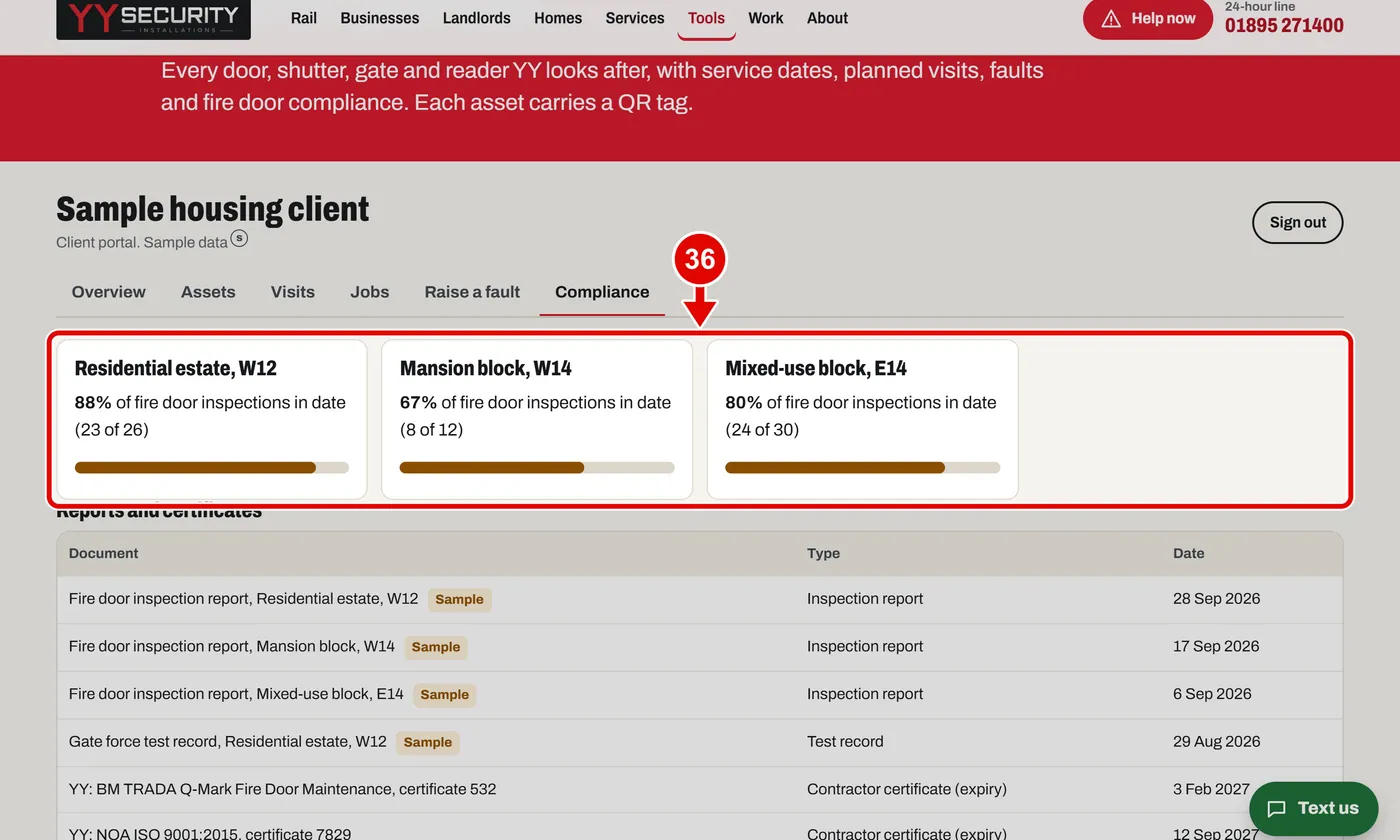
    Screen grab from Client portal, on a computer. A red box marks the part to use.
  37. Step 37. Below are your reports and certificates.
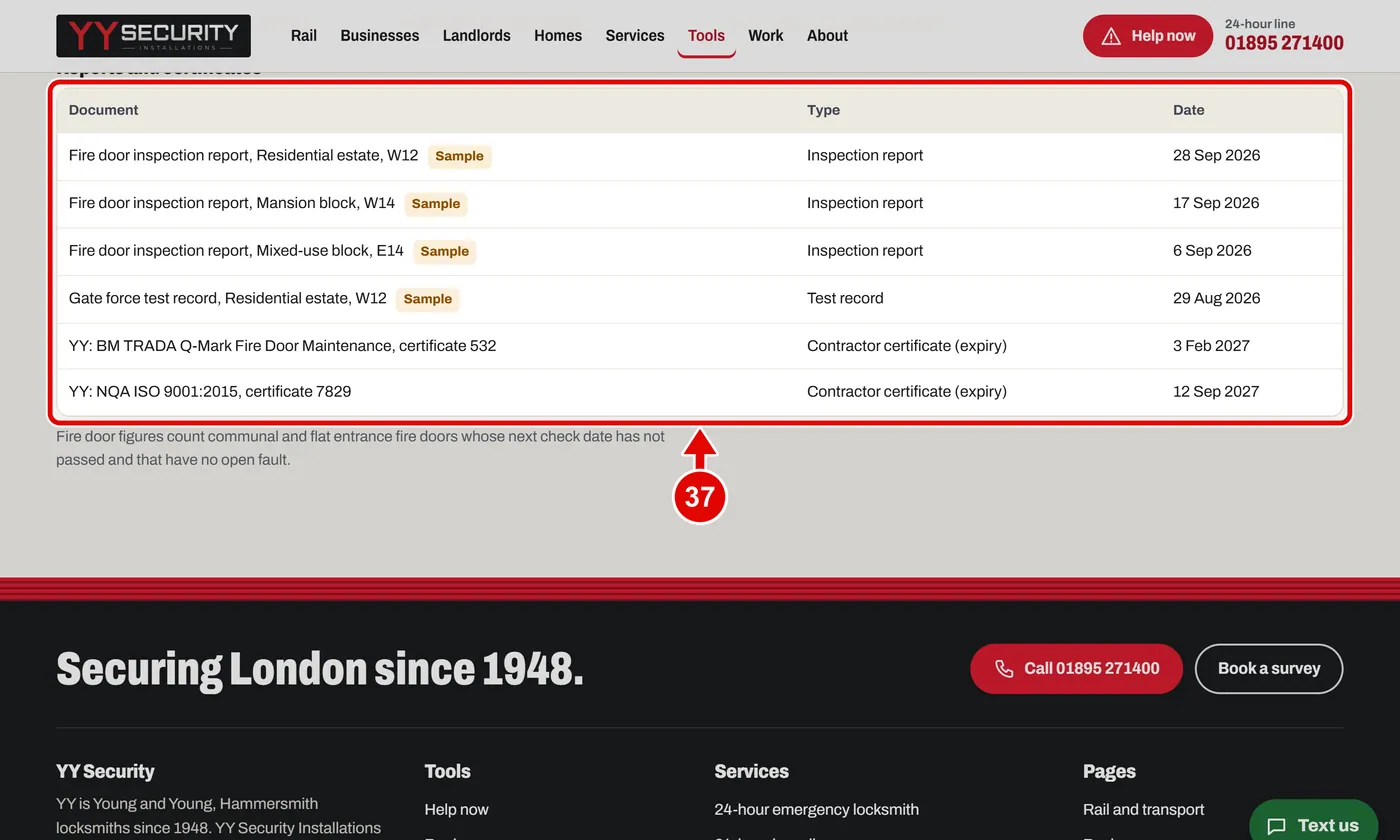
    Screen grab from Client portal, on a computer. A red box marks the part to use.
  38. Step 38. When you finish, click Sign out.
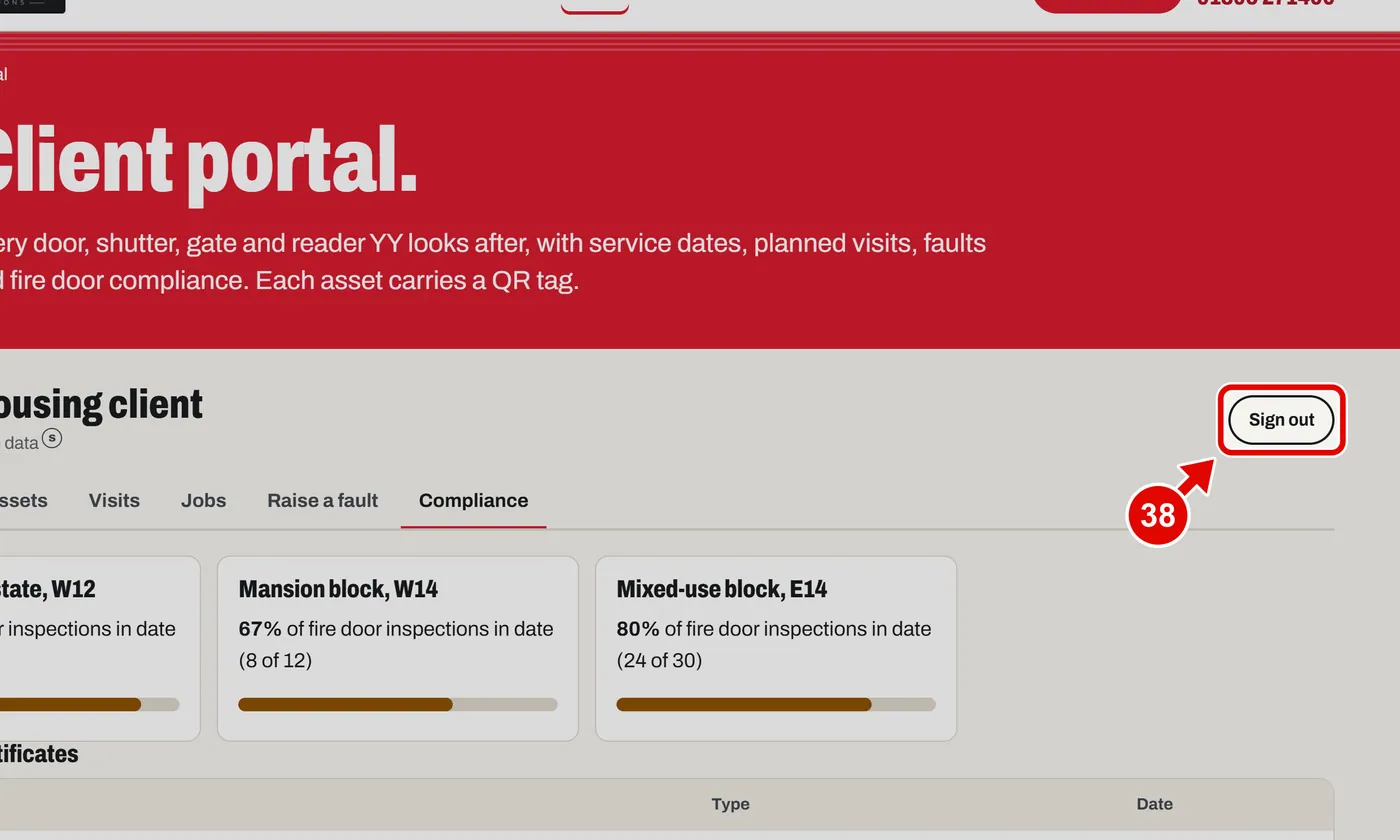
    Screen grab from Client portal, on a computer. A red box marks the part to use.
  39. Step 39. The rail account works the same way. use the account details issued by YY, then click Sign in.

  40. Step 40. The rail account sees its own stations, not the estates.
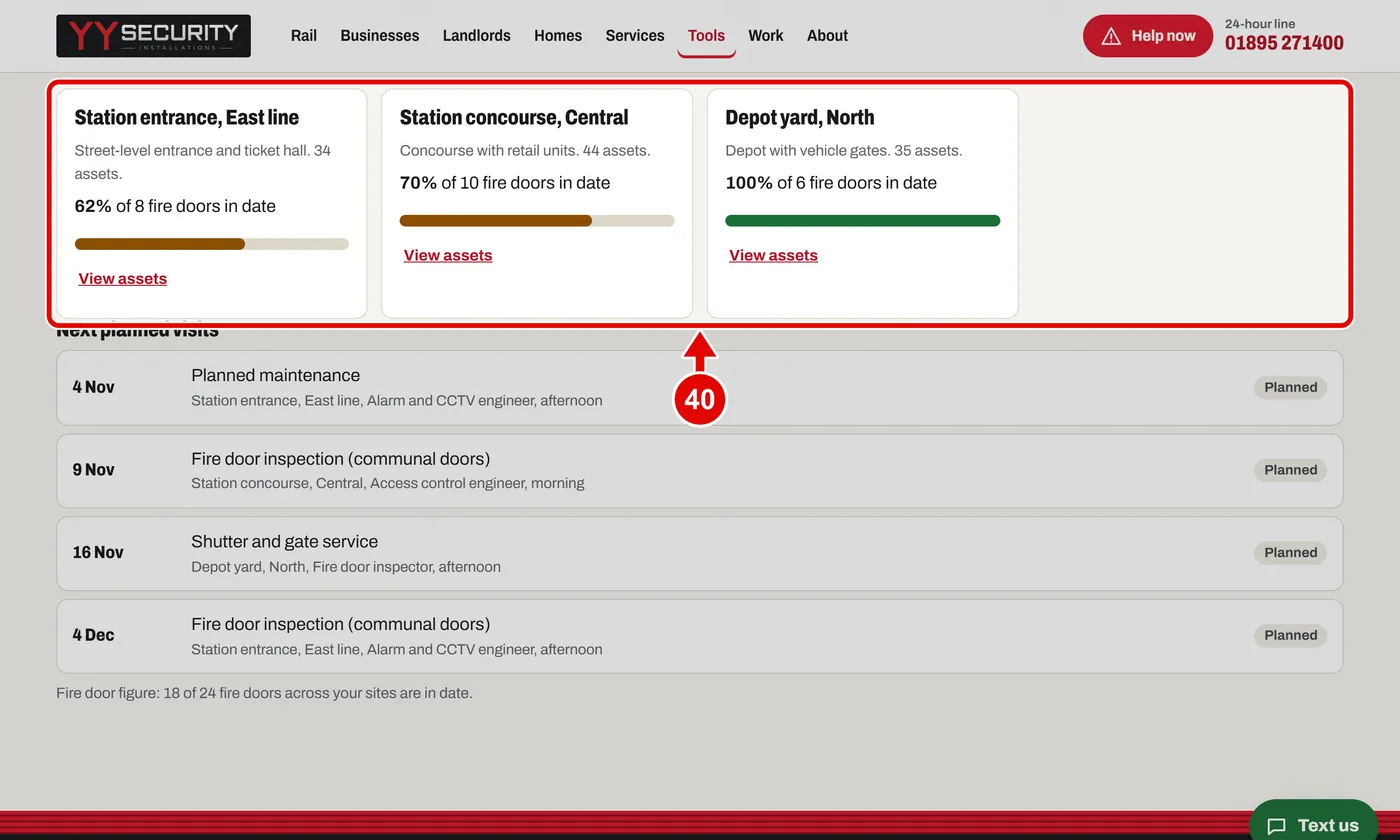
    Screen grab from Client portal, on a computer. A red box marks the part to use.
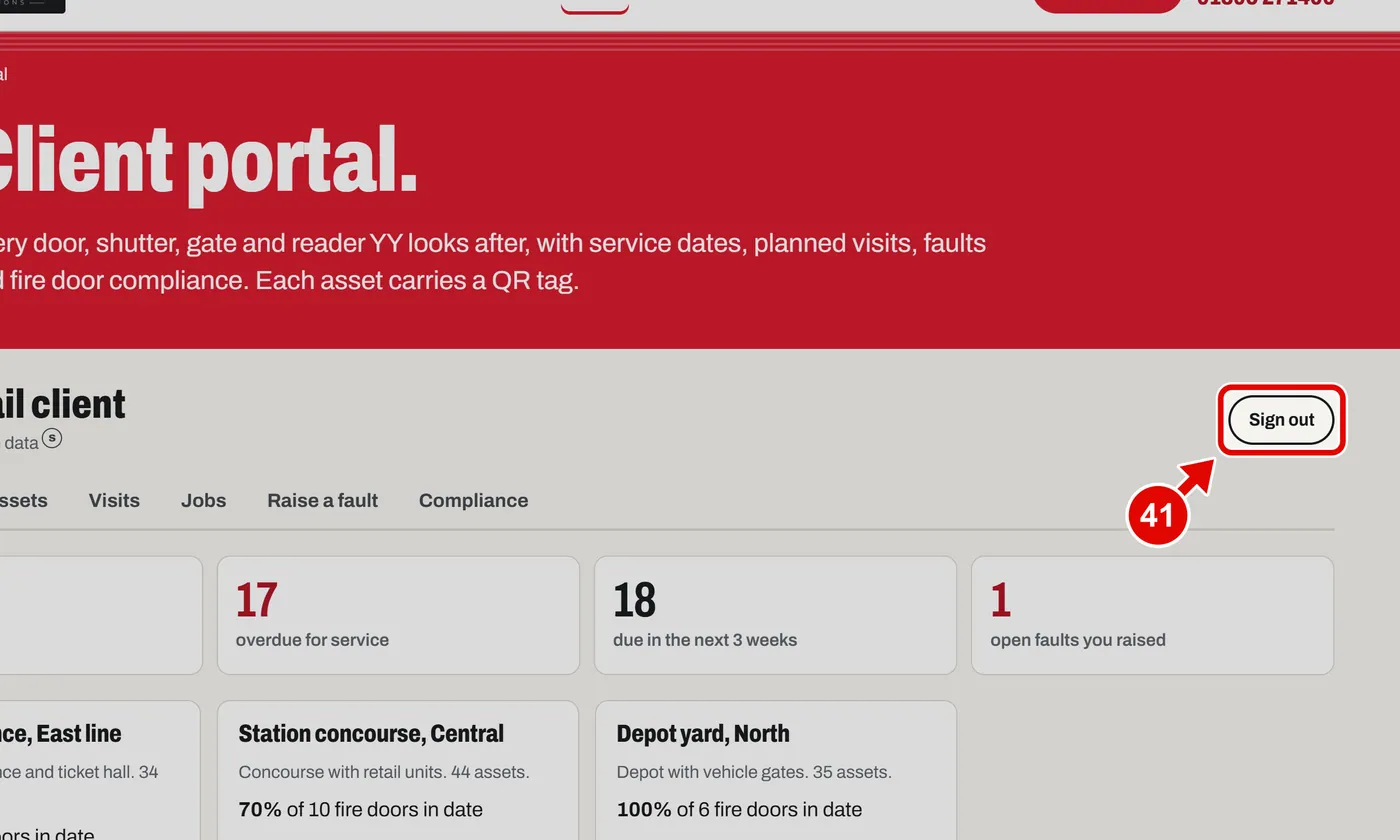
  41. Step 41. Click Sign out.

    Screen grab from Client portal, on a computer. A red box marks the part to use.
Text us