Part 22 of 24

Scan a QR tag with your phone

Every asset has a QR tag. A caretaker can scan it with a phone camera to see the asset and report a fault. No app is needed.

  1. Step 1. On your phone, open the Camera app.
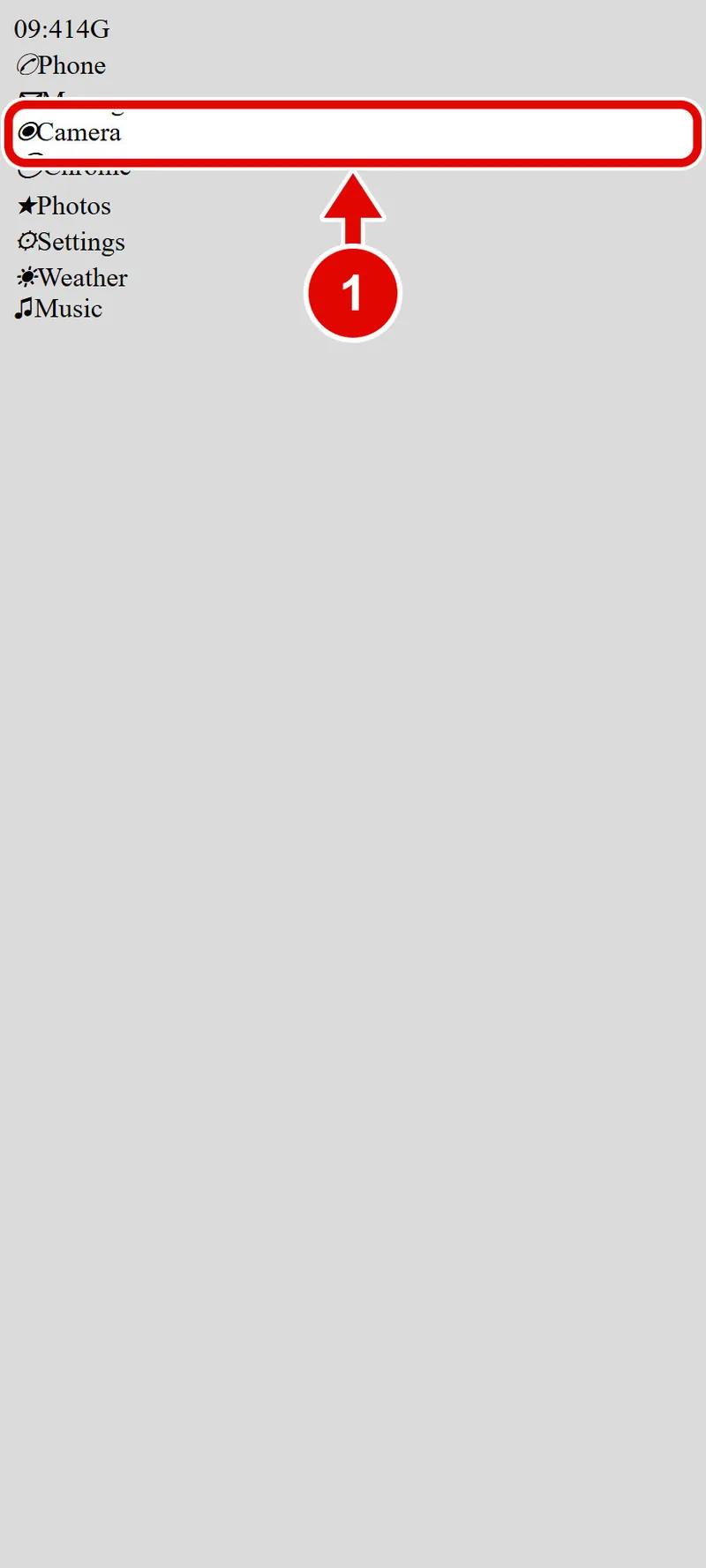
    Screen grab from Scan a QR tag with your phone, on a phone. A red box marks the part to use.
  2. Step 2. Point the camera at the QR tag on the door. Hold still for a second.
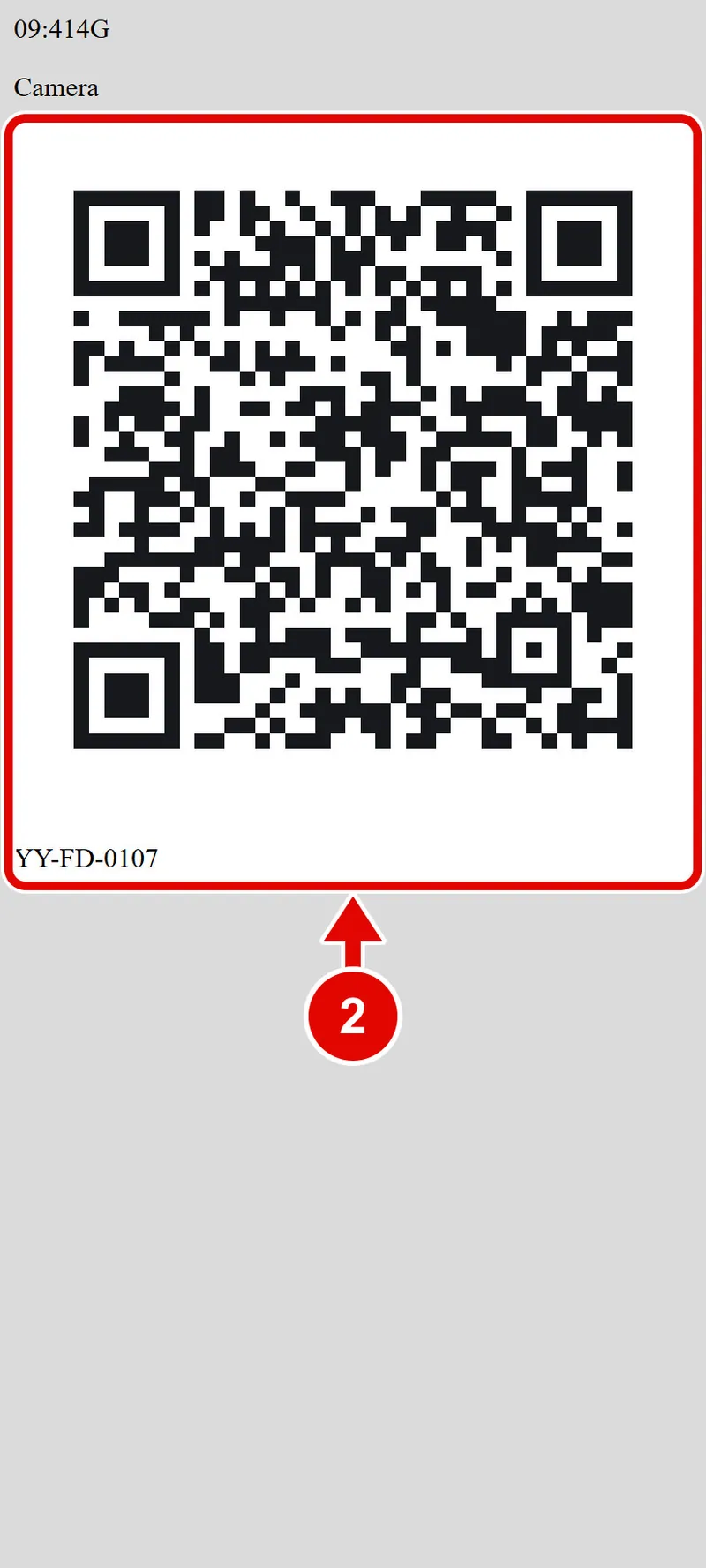
    Screen grab from Scan a QR tag with your phone, on a phone. A red box marks the part to use.
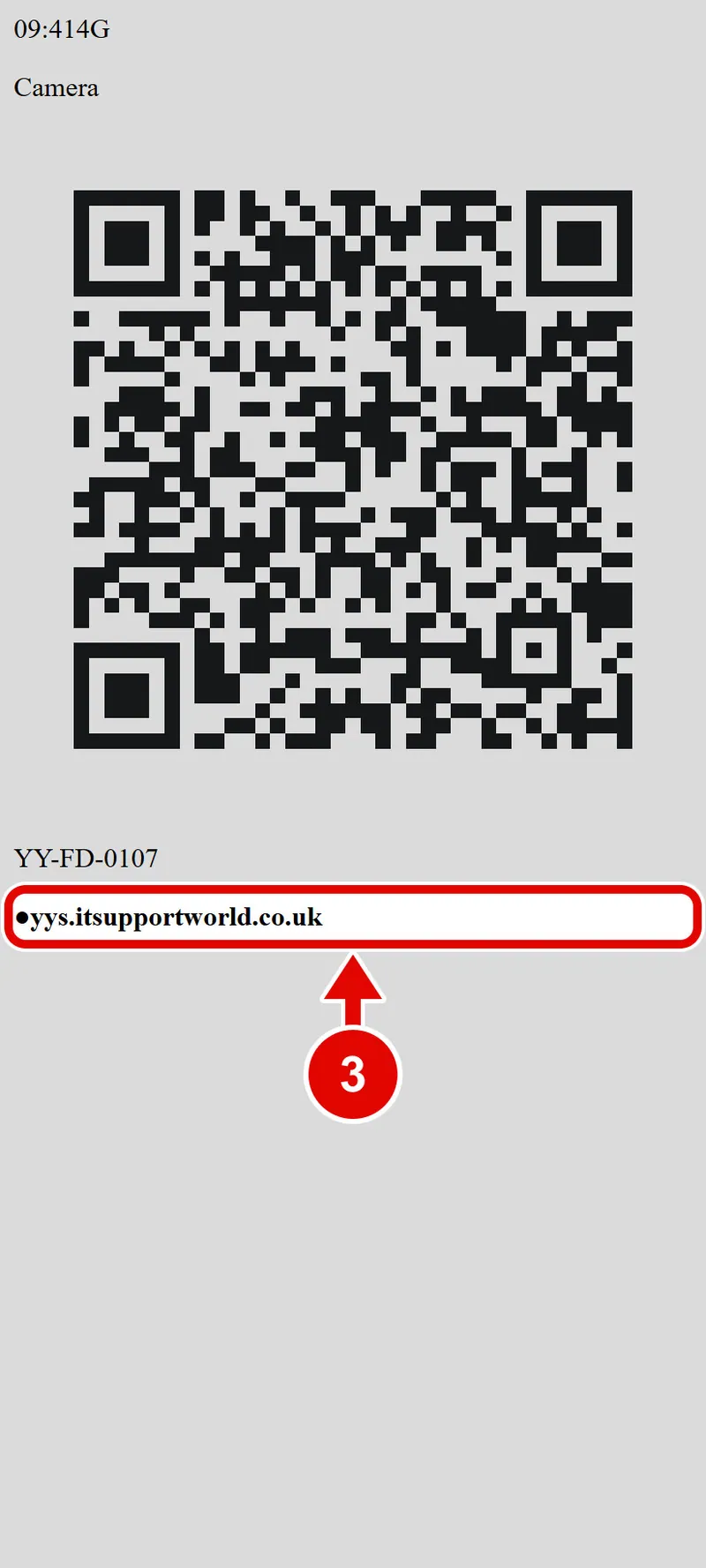
  3. Step 3. A link pops up. Tap it.

    Screen grab from Scan a QR tag with your phone, on a phone. A red box marks the part to use.
  4. Step 4. The first time, it asks you to sign in. Type your account email.

  5. Step 5. use the account details issued by YY.

  6. Step 6. Tap Sign in.

  7. Step 7. The asset page opens. You see the tag, its status and its dates.
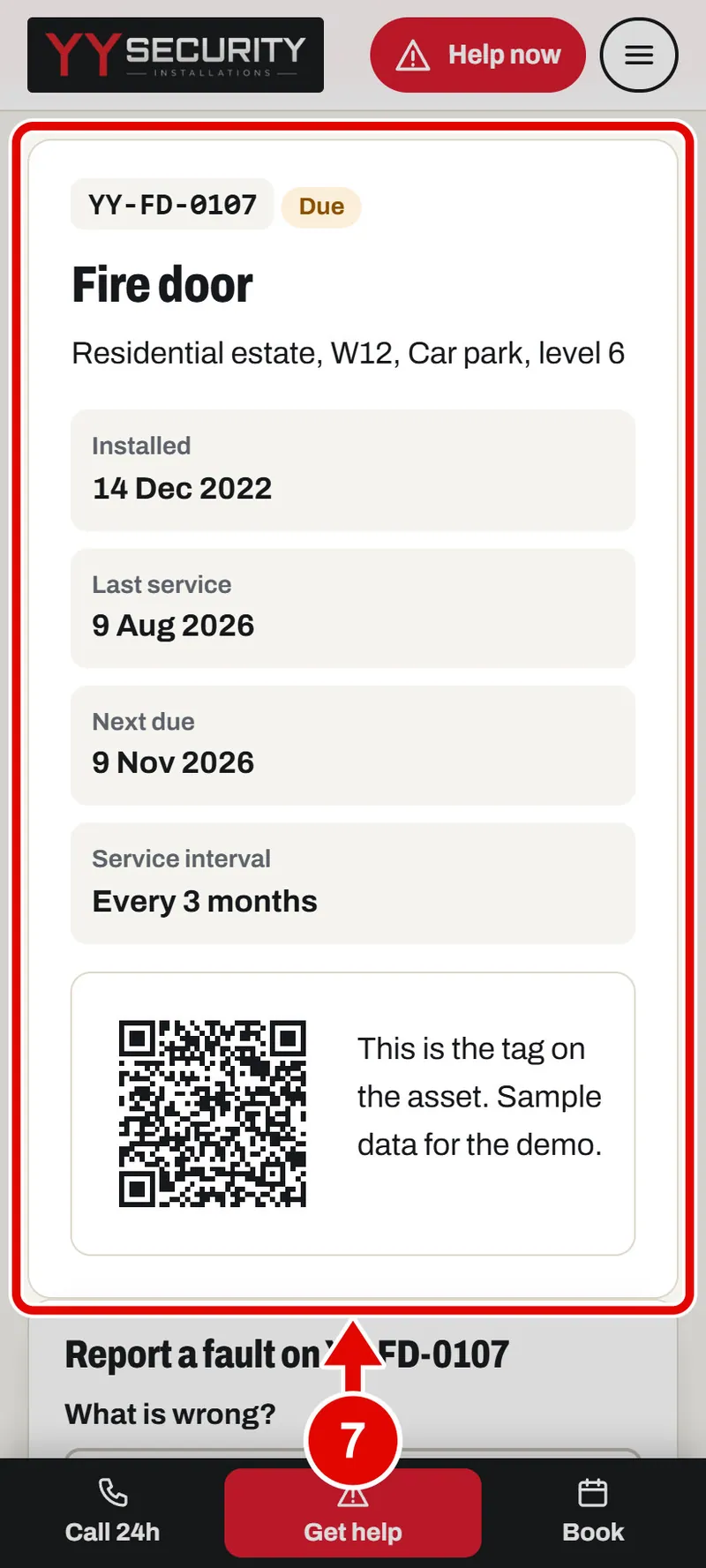
    Screen grab from Scan a QR tag with your phone, on a phone. A red box marks the part to use.
  8. Step 8. To report a problem, tap What is wrong? and type it.
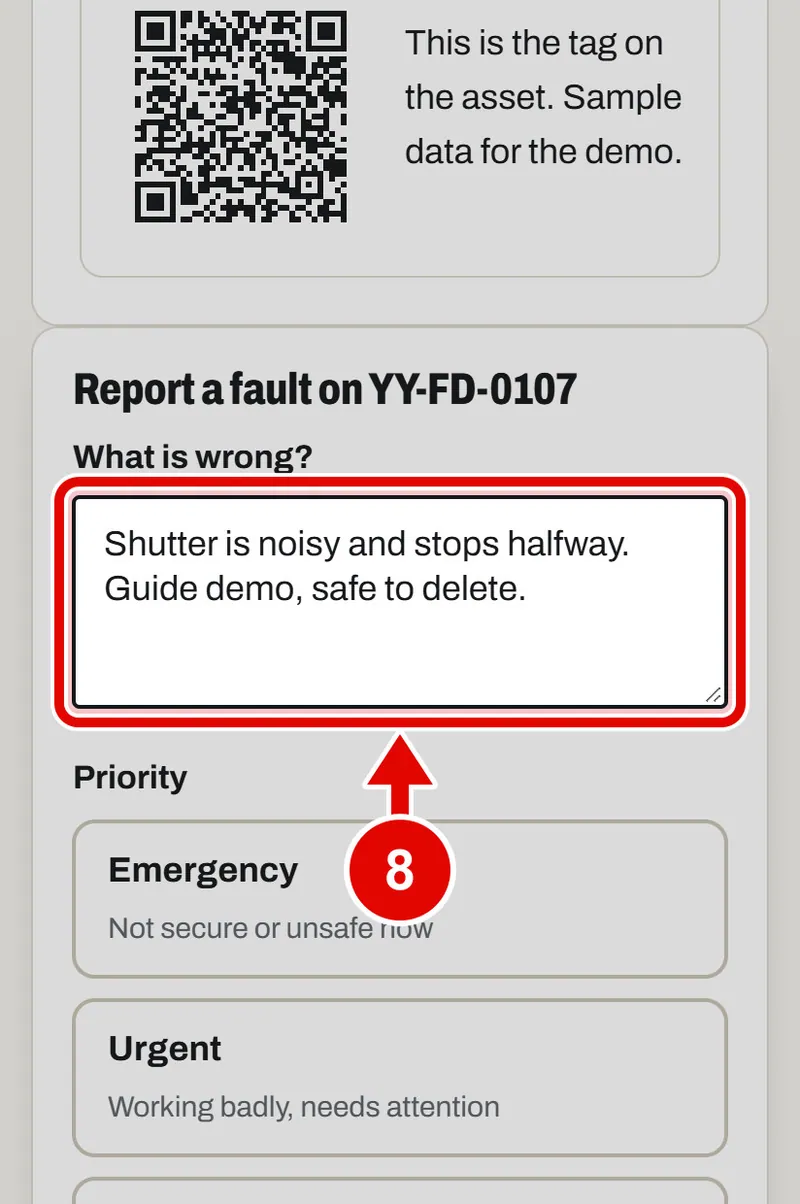
    Screen grab from Scan a QR tag with your phone, on a phone. A red box marks the part to use.
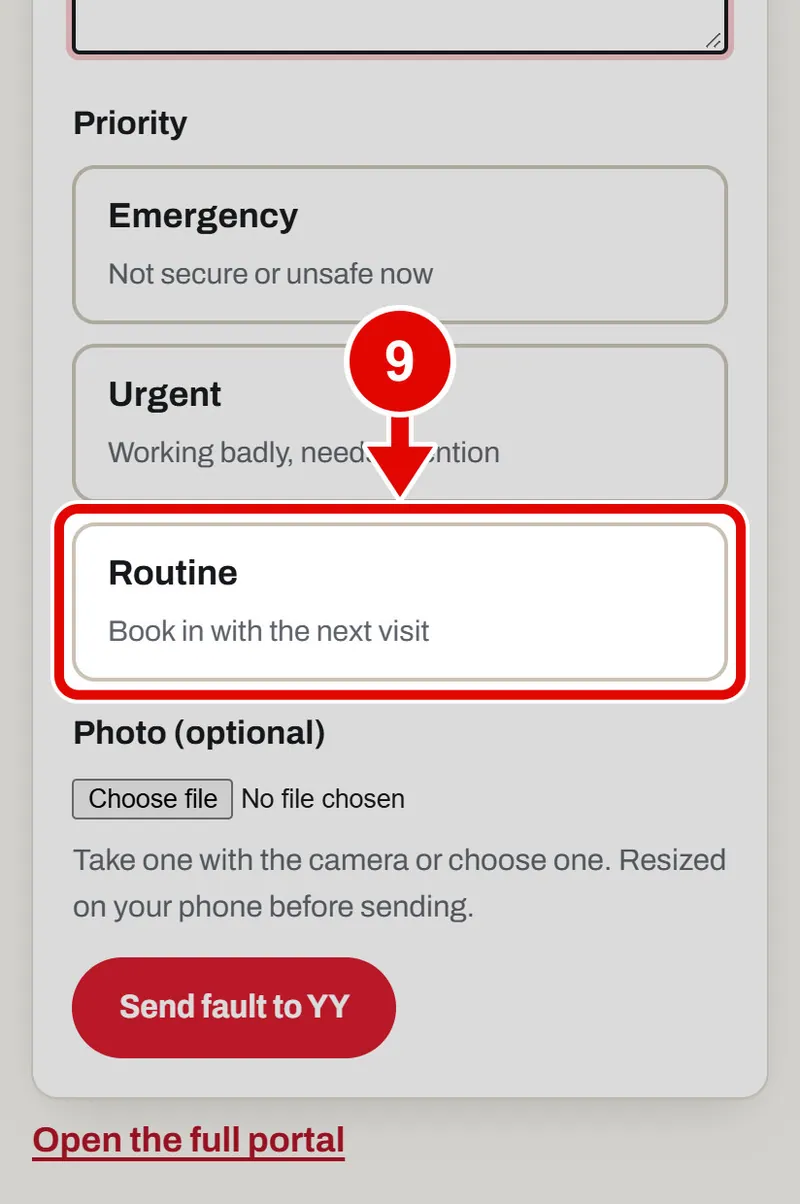
  9. Step 9. Tap how urgent it is.

    Screen grab from Scan a QR tag with your phone, on a phone. A red box marks the part to use.
  10. Step 10. Tap Choose file to add a photo. You can take one with the camera.
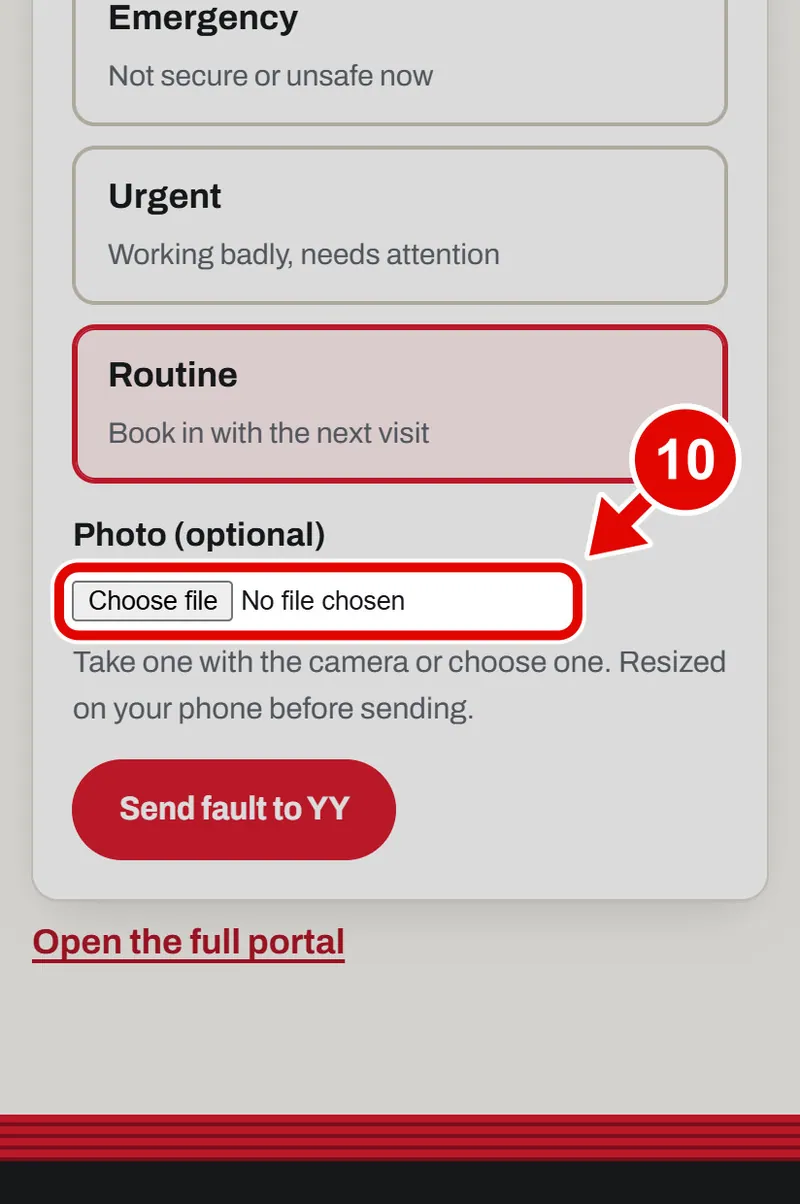
    Screen grab from Scan a QR tag with your phone, on a phone. A red box marks the part to use.
  11. Step 11. When it says Photo ready, tap Send fault to YY.
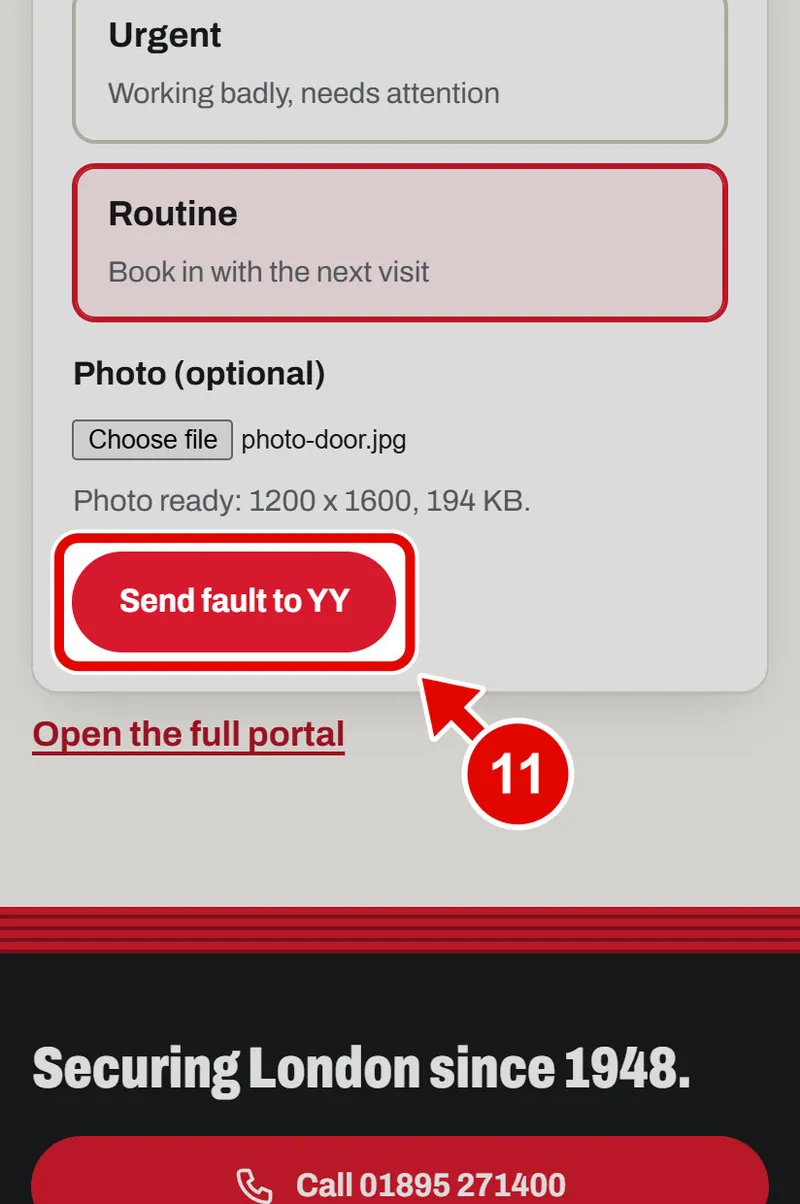
    Screen grab from Scan a QR tag with your phone, on a phone. A red box marks the part to use.
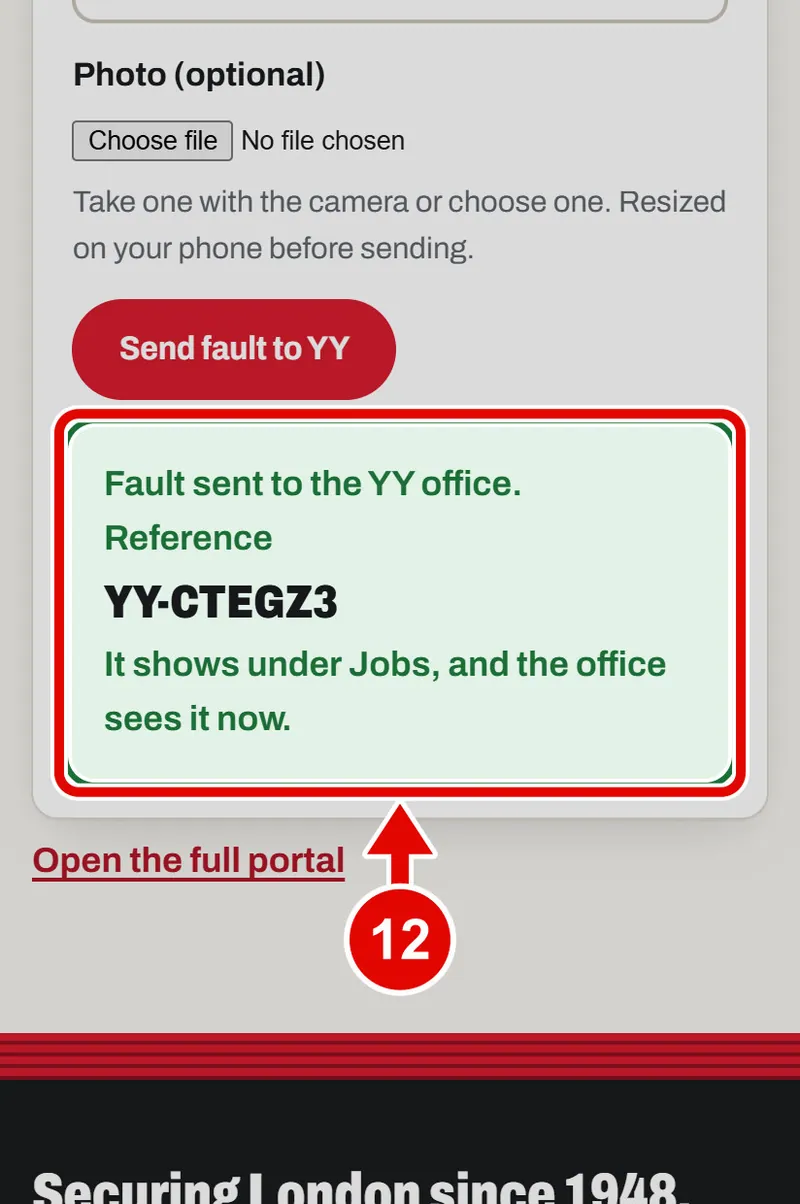
  12. Step 12. Done. You get a reference.

    Screen grab from Scan a QR tag with your phone, on a phone. A red box marks the part to use.
  13. Step 13. Tap Open the full portal to see everything.
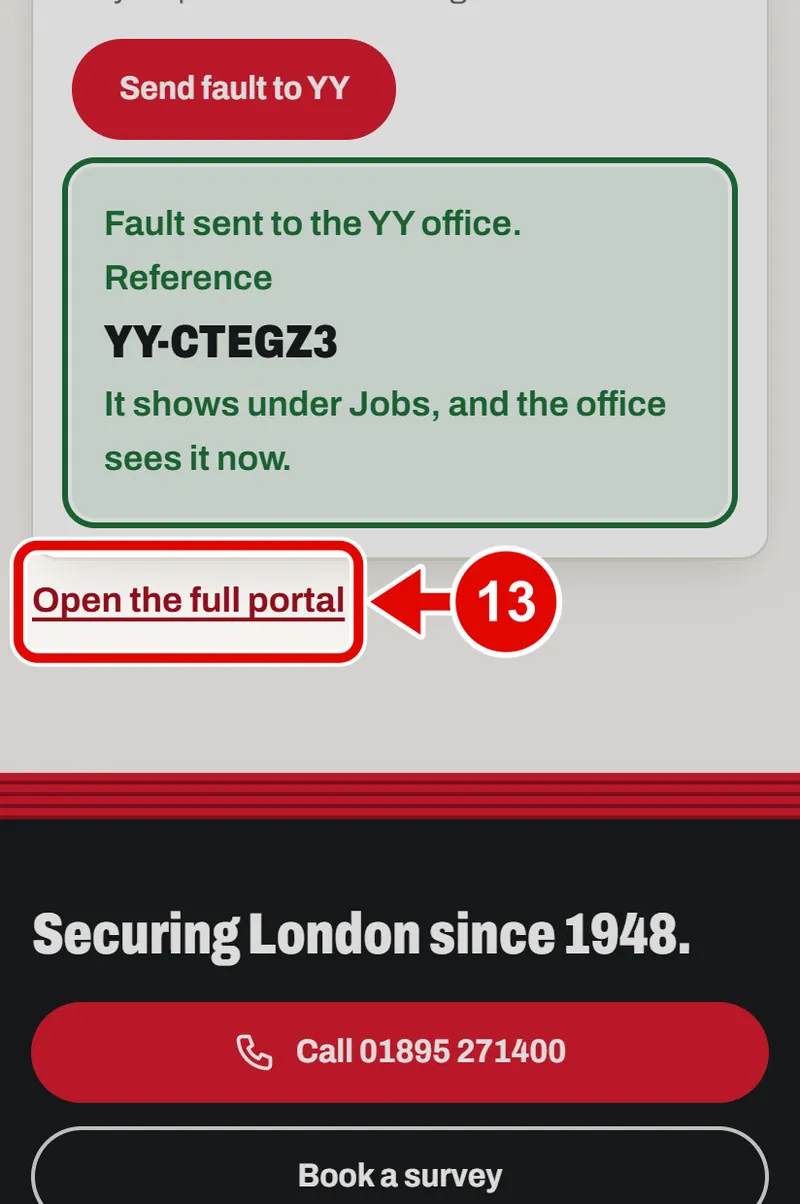
    Screen grab from Scan a QR tag with your phone, on a phone. A red box marks the part to use.
  14. Step 14. On a phone the tabs sit in one row. Swipe the row sideways to see them all.
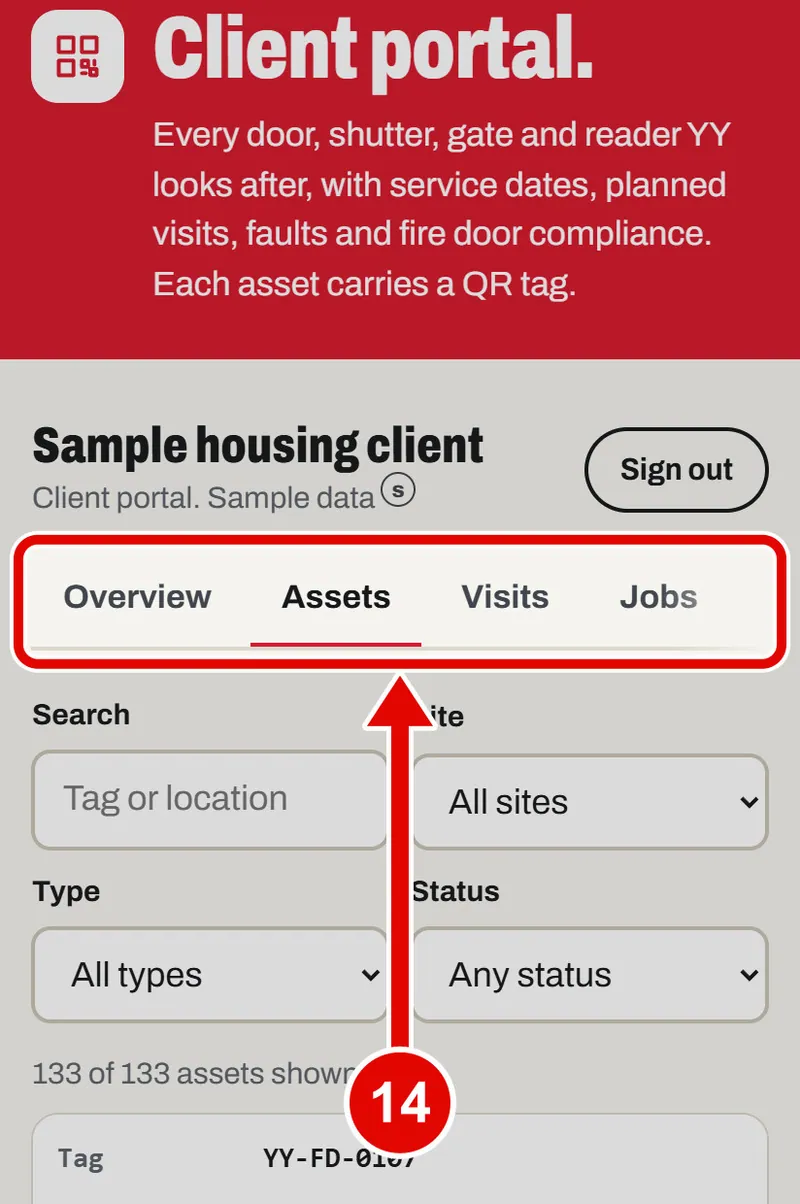
    Screen grab from Scan a QR tag with your phone, on a phone. A red box marks the part to use.
  15. Step 15. Tap Sign out when you finish.
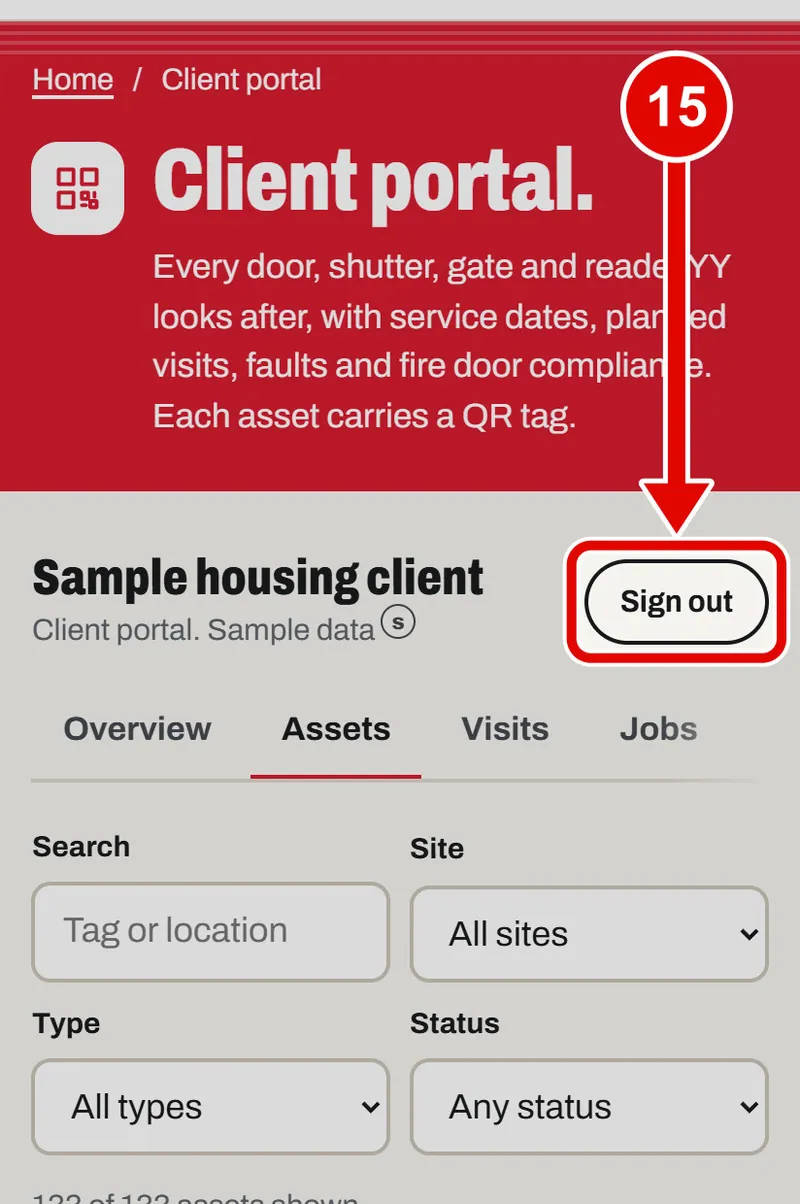
    Screen grab from Scan a QR tag with your phone, on a phone. A red box marks the part to use.
Text us